How to Find Out Where a Photo Was Taken: 7 Practical Methods


Quick Answer: How to find out where a photo was taken. It depends on what information is still available in an image. You can start by checking original photo for GPS metadata. If GPS data is missing, you can use methods like Google Photos, iPhone or Android info menus, Google Lens, reverse image search, visual clues, AI-photo-location, and map or forensic verification.
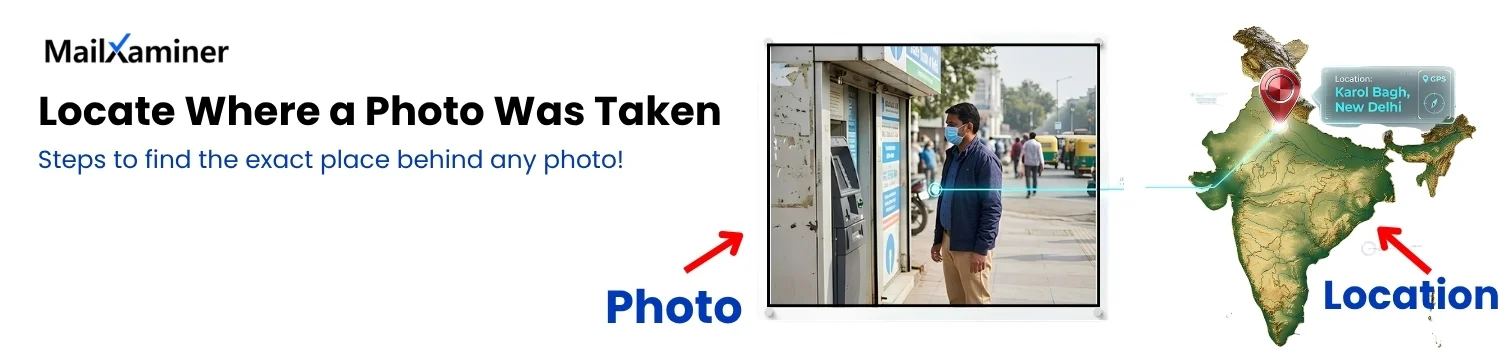
You do not need to try every method at once to find photo’s location. Start with what information is available in an image. If it do not provide you satisfied results, select another method. Let us check which method can work in your situation:
| What You Have | Start Here |
|---|---|
| Original photo from phone or camera photo | EXIF/GPS Metadata |
| Photo stored in Google Photos | Google Photos information panel |
| Landmark sign and recognizable object | Google Lens |
| Image found on internet | Reverse image search |
| No GPS or metadata | Visual clues and AI help |
| Coordinates or suspected place | Google Maps |
| Photo attached to digital evidence | Forensic analysis |
How To Find Photo’s Location Using GPS Data
Best method depends on whether photo still carries location data or you need to find or judge location from what image shows. Digital Cameras and mobile phones (Android or iPhone) has an inbuilt GPS function. When a person clicks any picture, device’s camera records GPS coordinates of location at which the photo was taken.
To extract Geolocation from images start with the original image whenever possible. Photo can contain EXIF (Exchangeable Image File Format) metadata such as:
- Capture date and time
- Camera information
- When recorded, GPS latitude and longitude.
Note: Start with original image whenever possible. Edited, exported, or shared copies may not have information present in original files.
Check EXIF Metadata for GPS Coordinates in Windows
EXIF metadata is the first thing to check because image file have the location contained in GPS data. When GPS data is present, the file contain latitude, longitude and altitude values.
Note: EXIF can only reveal a location when relevant information still exists in the file you are examining.
- Locate original image in File Explorer.
- Right-click the image.
- Select Properties.
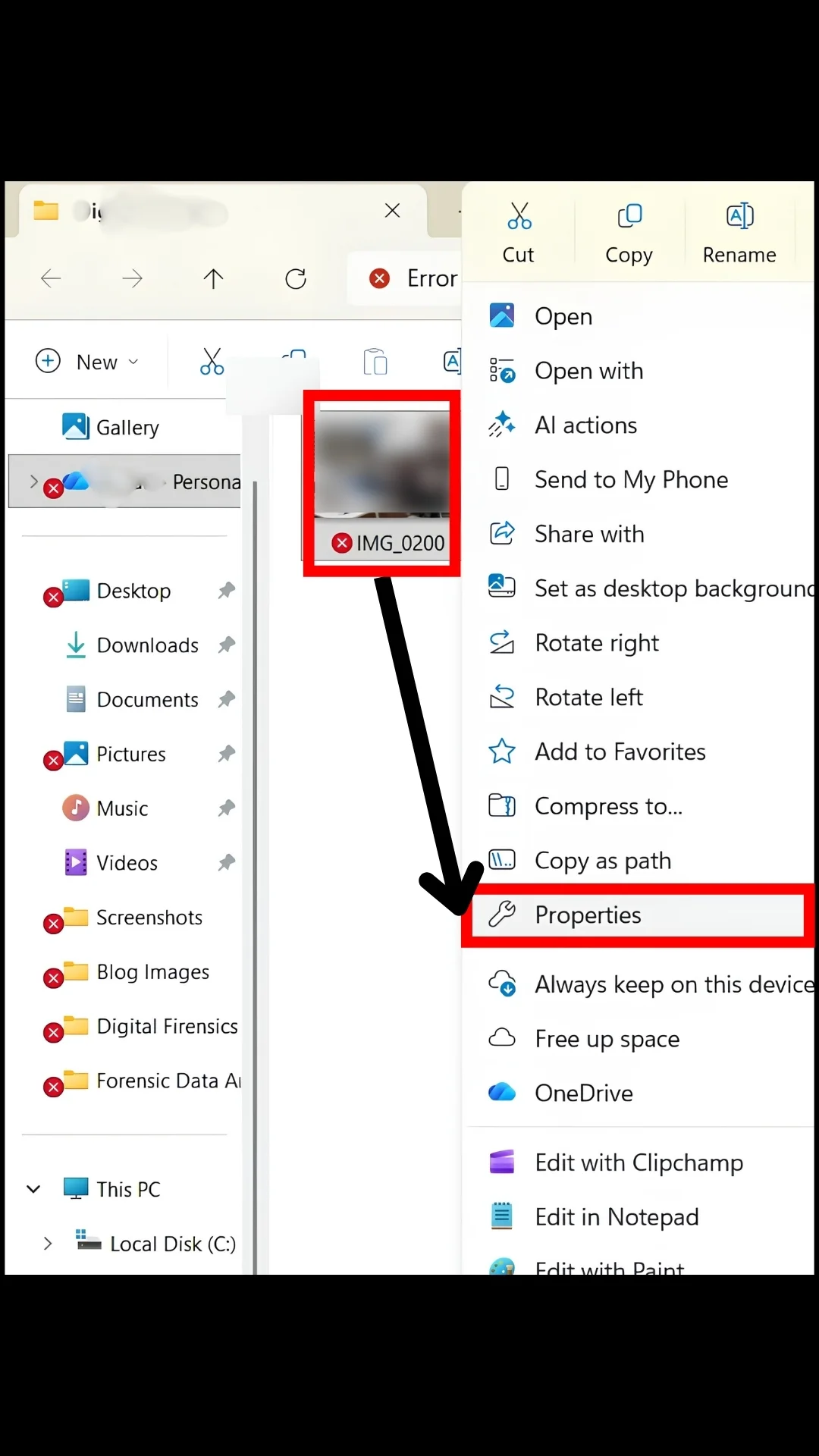
- Open Details tab.
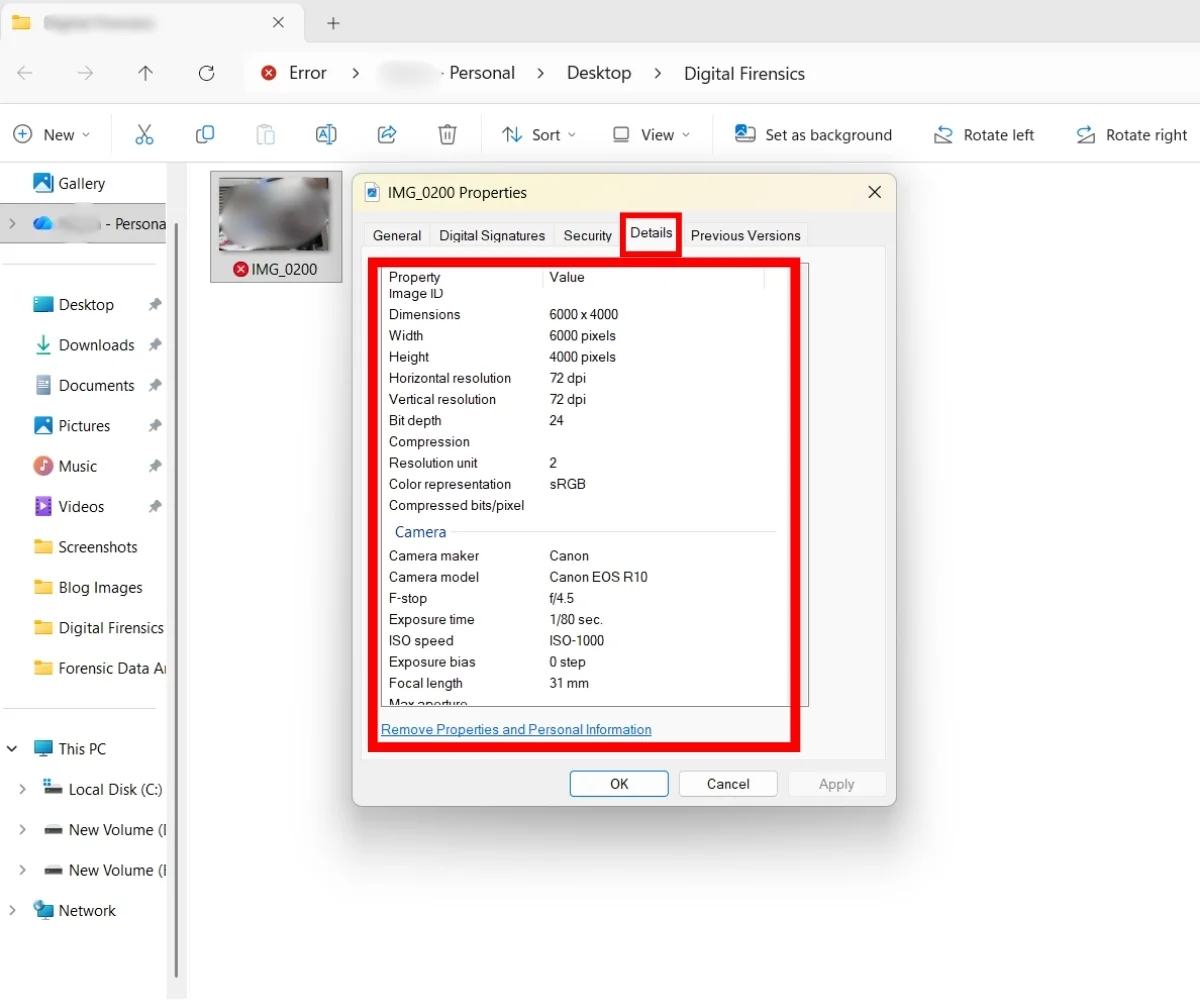
- Scroll through the available fields and look for GPS information.
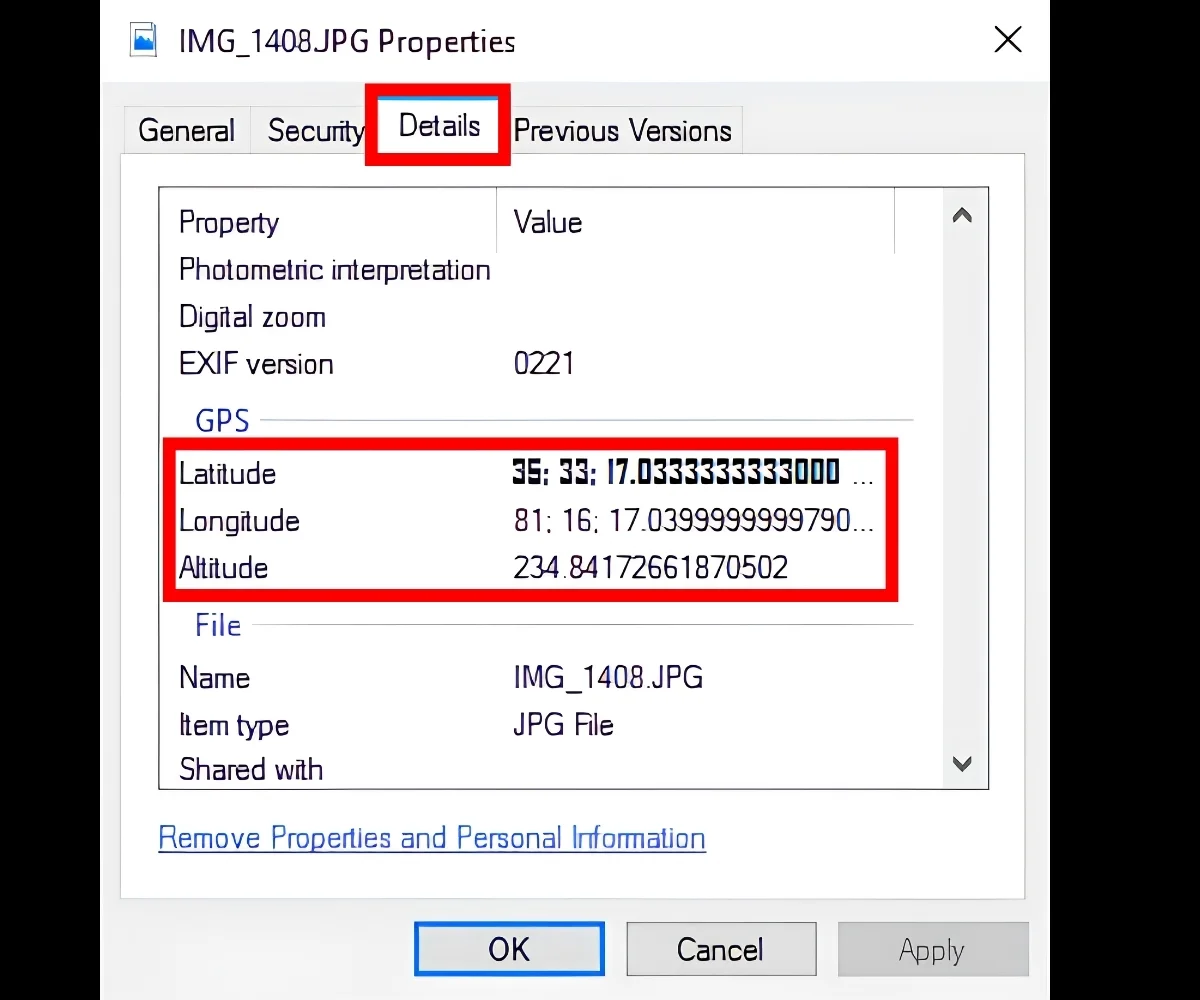
All modern and latest smartphones, cameras, and devices are usually built with this GPS functionality. But, it do not guarantee that every photo contains GPS data. Camera app in your phone must support location tagging, having required permissions and configured to save location information. Settings need to be enabled in the respective devices, then only the information will be available when capturing photos.
Note: Only GPS-enabled devices provide Geotag information for images. If the location privacy in the Smartphone is on, then only the clicked image will include the different attributes of GPS in the form of longitude, latitude, and altitude within the picture.
Once you have Latitude and Longitude you can check its location from Google Maps.
Note: If you cannot find GPS fields and in Windows Properties. You can find original file with another EXIF Viewer. If GPS information is still not available. Try other methods in this guide.
How to Find Location From Latitude and Longitude on Google Maps
After getting GPS information on the picture, user can find the location where picture was taken using Google Maps. Photo location search function integrated into Google Maps allows searching for a specific location by entering its GPS coordinates. The following are the steps for how to find out where a picture was taken.
- First of all, you need to get the Latitude and Longitude coordinates from the Geotag information of the photo.
- Now, open Google Maps on the system and enter the GPS Information from the image into the search bar of Google Maps.
- After a few seconds, Google Maps will point to the exact location, corresponding to the GPS coordinates that you have entered.\
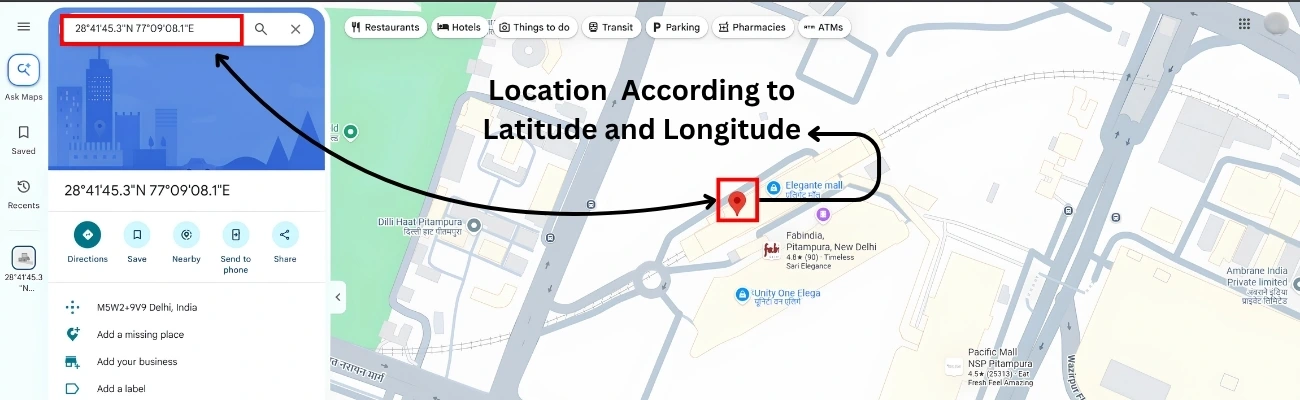
- Google Maps accepts coordinates in any of the formats given below:
Degrees, Minutes, and Seconds (DMS): 41°28’14.2″N 2°10’24.5″E
Degrees and Decimal Minutes (DMM): 41 24.7036, 2 40.6612
Decimal Degrees (DD): 41.40228, 2.17592
Note: Make sure that you have entered coordinates correctly using the correct symbols for minutes, degrees, and seconds. Misplaced digit and an incorrect order can point different location. Failing in this can be a huge blunder to learn how to see the location of a photo someone sent you.
What if GPS Information Is Missing
If GPS information is not visible in Windows Properties possibilities are:
- Image do not contain GPS data.
- Windows may simply not display the relevant metadata in properties window.
Never assume that photo has no location data just because Windows Properties section has not displayed GPS section. Try checking original image with another EXIF viewer. If GPS data is still unavailable. You can use Google Lens, reverse image search, visible clues, or AI geolocation to find where a photo was taken.
Use Google Lens to Search Image
Google Lens is useful when location is visible inside photograph rather than stored in metadata. Building, monument, store sign, road sign or distinctive object can become search clue. Google Lens can return objects, similar images and websites containing same or similar image.
How to use Google Lens on a computer
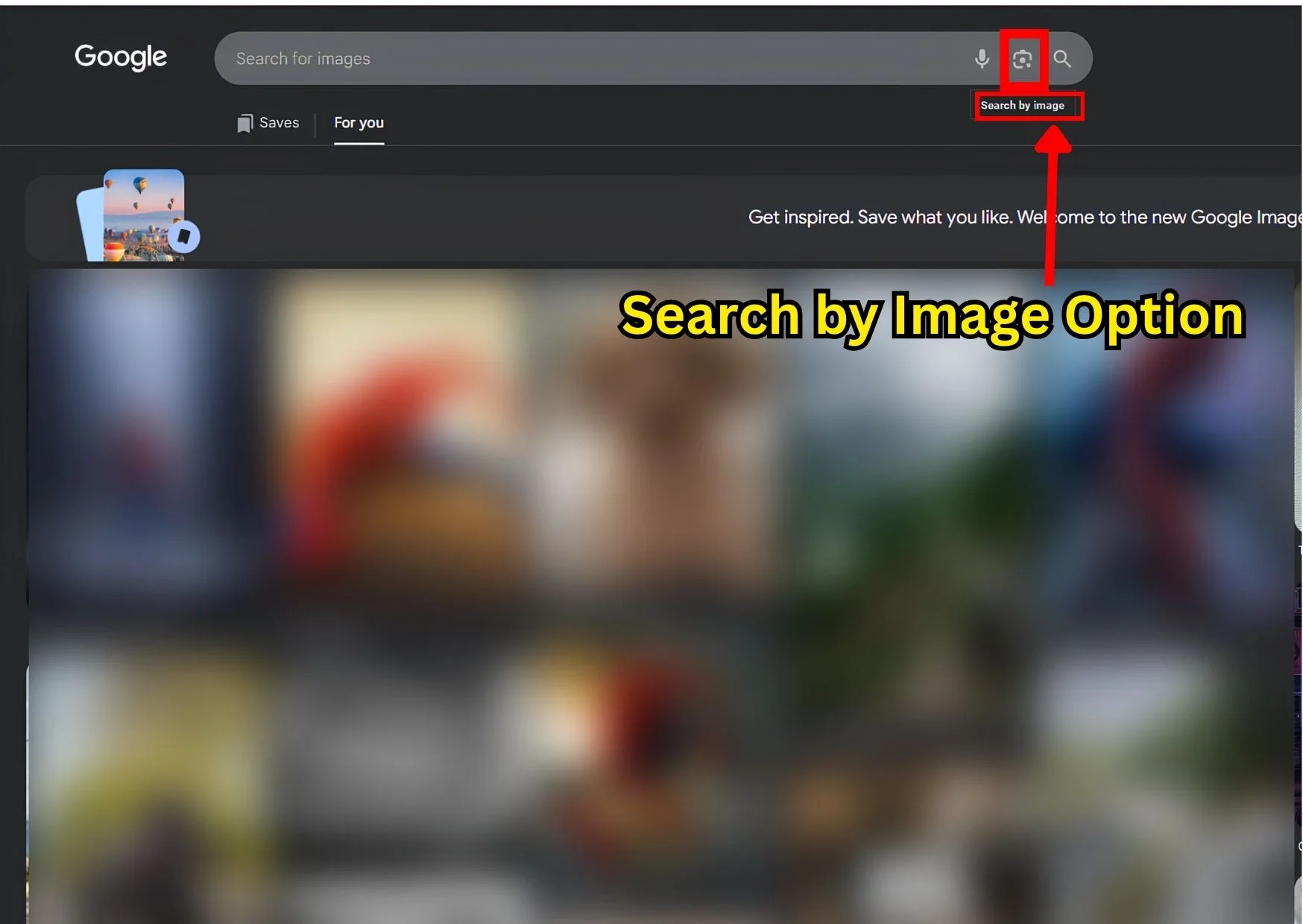
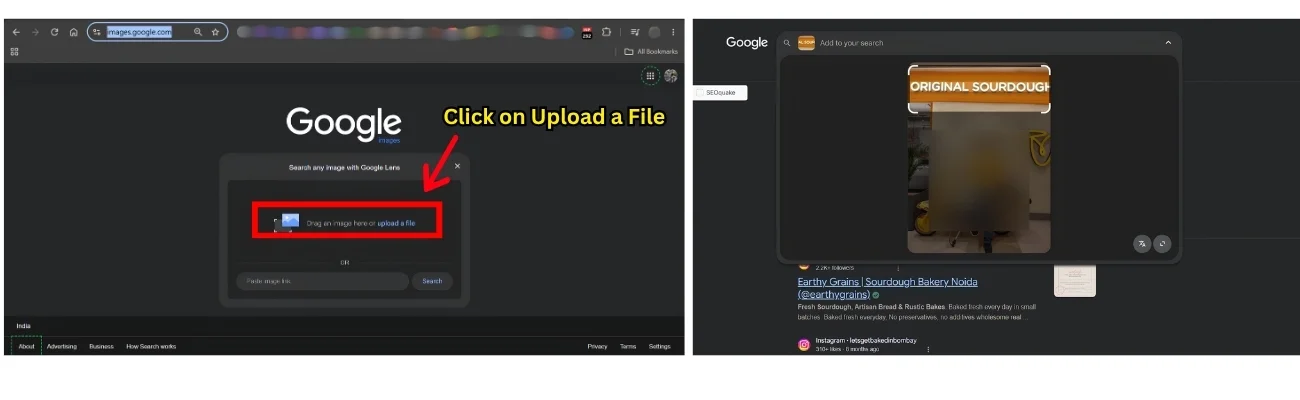
- Open images.google.com
- Select Search by image.
- Choose Upload a file.
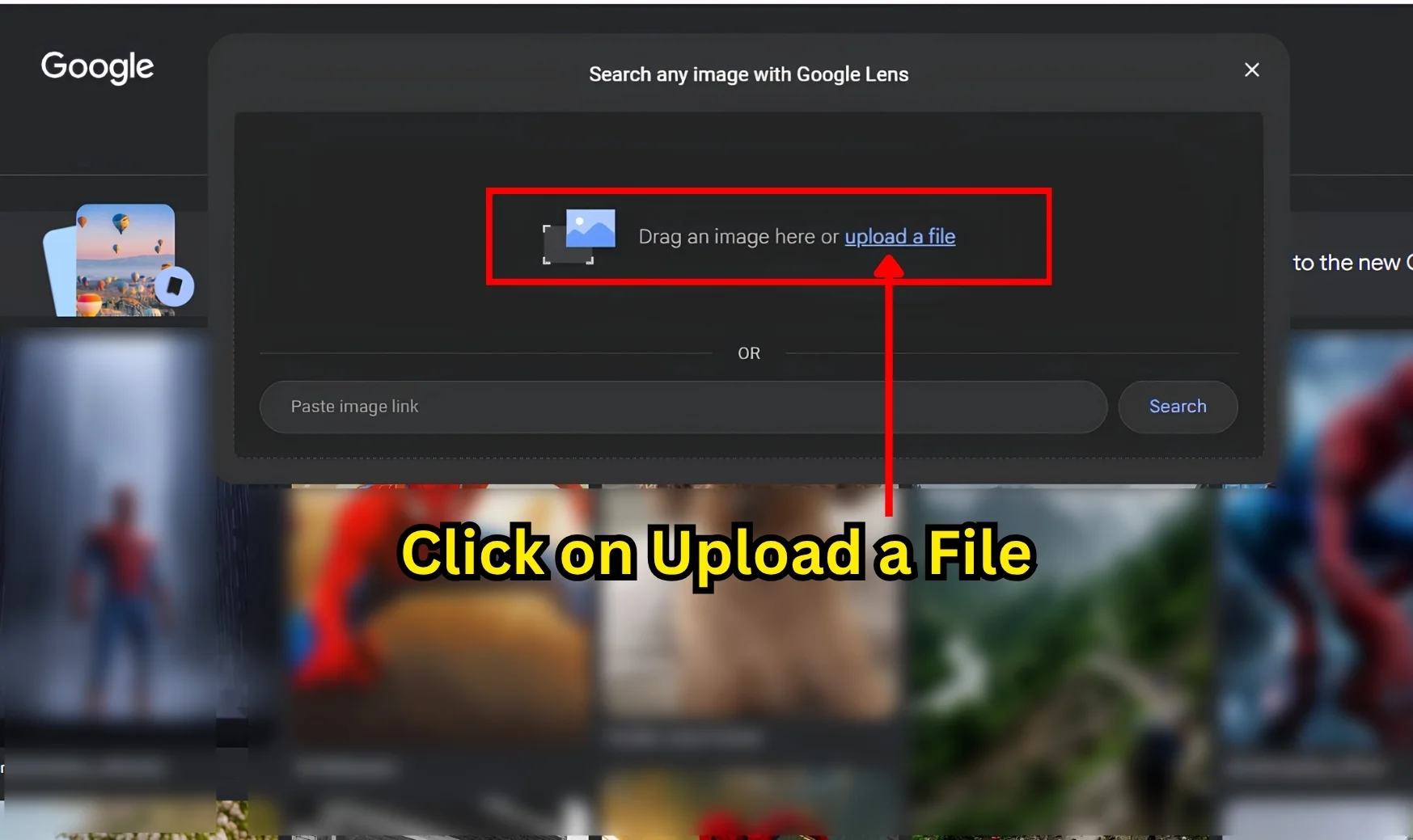
- Select photo from your computer or use drag and drop option.
- Review visual search results.
- Use additional search terms when you already have clue, such as a city name, landmark and language.
- Where available, narrow selection to the most useful part of the image.
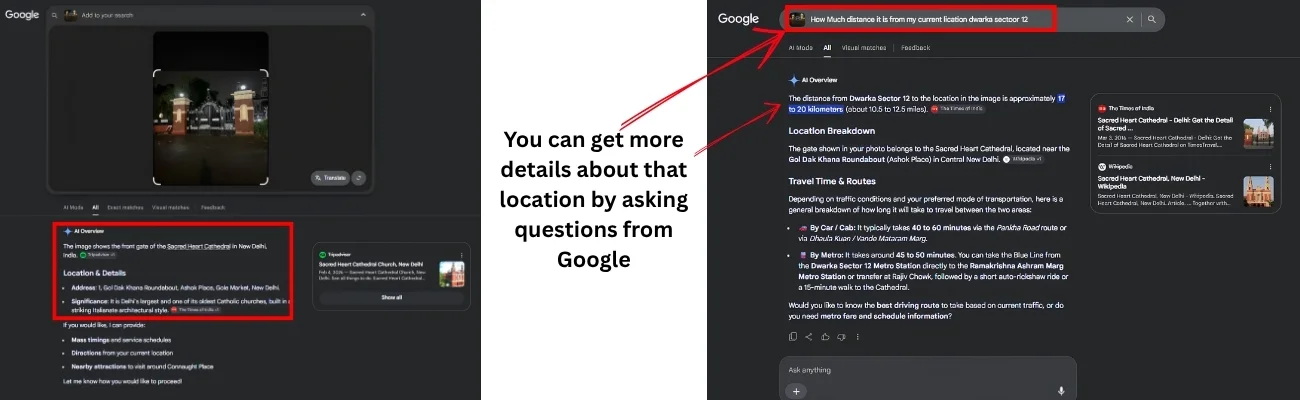
How to use Google Lens on Android
- Open the Google Lens app
- Select the photo of which you want to find the location.
- Upload the photo.
- Select part of an image you want Google Lens to analyze.
- Review results.
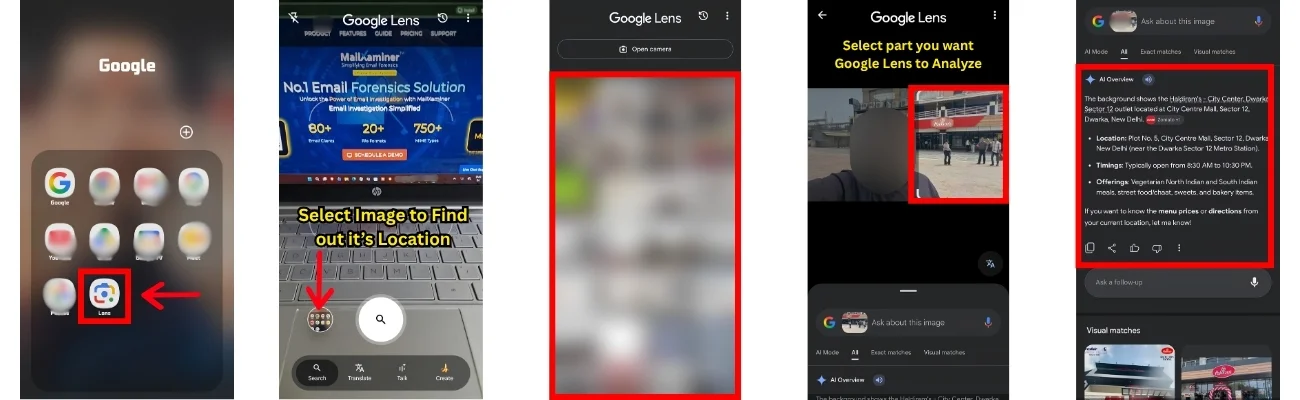
- Add words to your search when you have a clue to get more clarity.
Google recommends that user should select smaller and focused area when more specific results are required. For example, a full street scene will produce broad results. Cropping only shop sign can make the search much more focused.
Find the Photo Location Through Google Photos
Google Photos can become useful when picture already belongs to your personal library. Location can come from
- Camera’s embedded data.
- Location you manually added.
- Estimated location generated by Google Photos using information such as landmarks and other photos in your library.
That means you should look what kind of location you are seeing. Camera-recorded location and an estimated location are not the same thing.
How to check it on computer
- Go to photos.google.com.
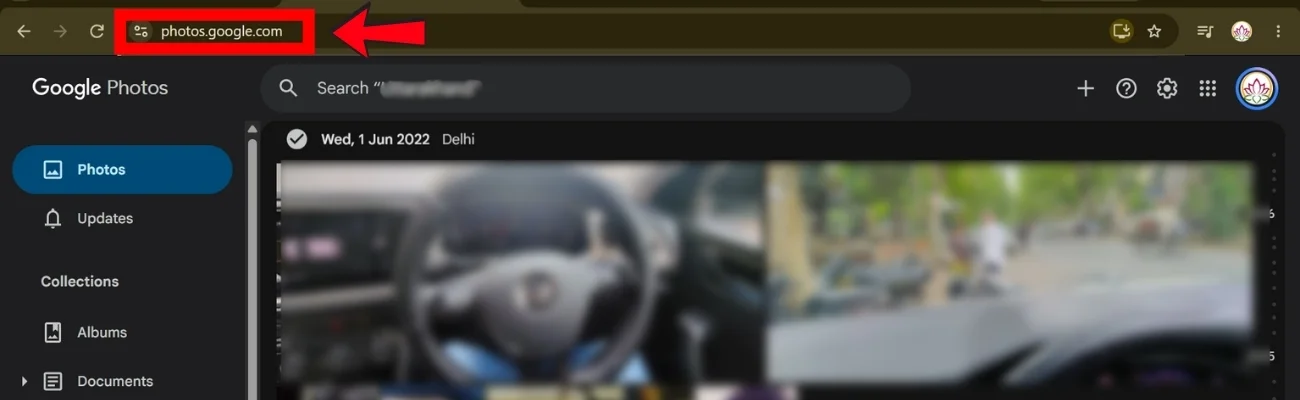
- Open photo.
- Click the Info icon.
- Look for the location information.
- Open the location or map when available.
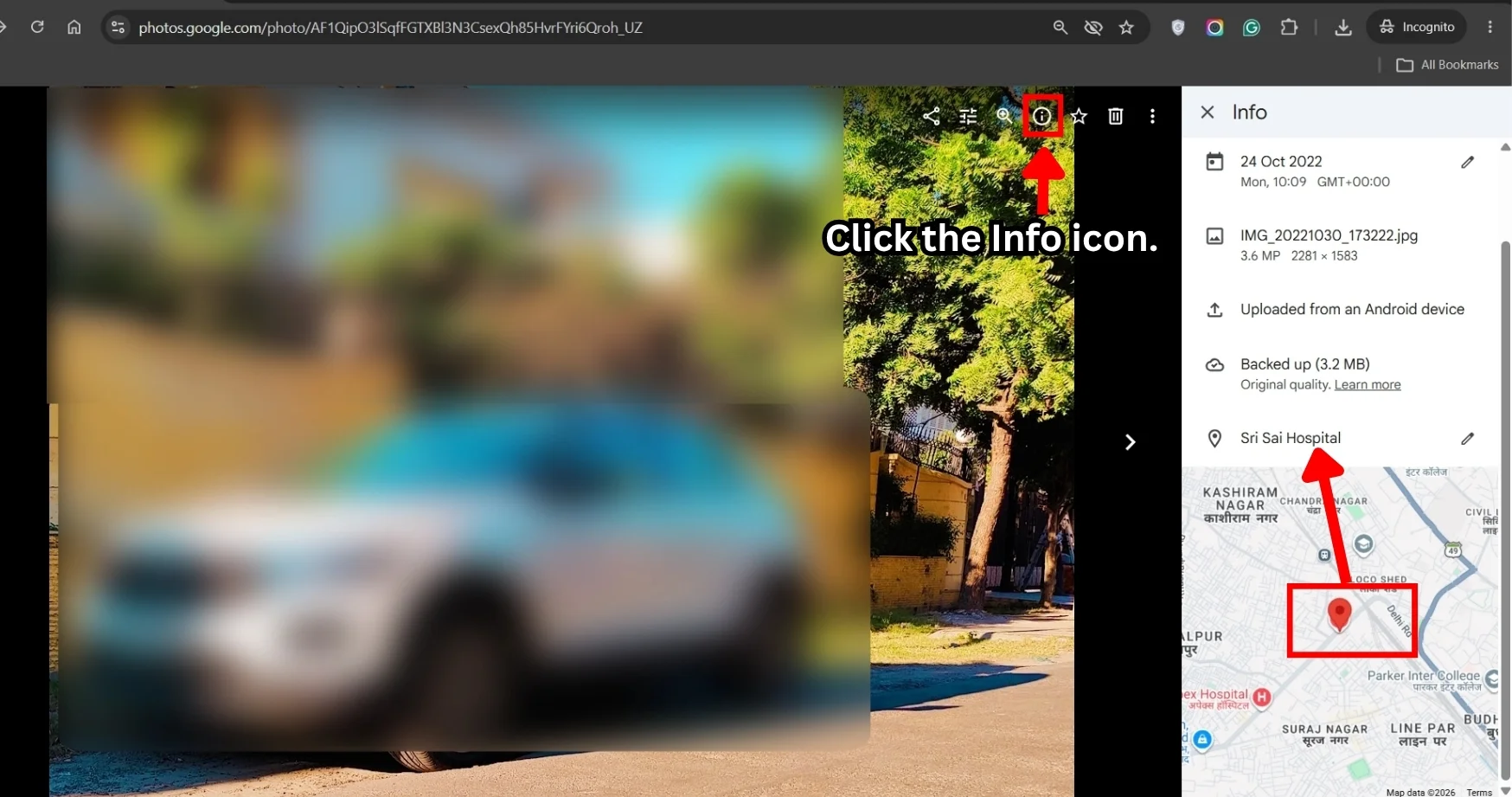
Google’s current computer instructions use the photo’s Info panel to manage location information.
What if Google Photos do not provide exact pinpointed location: Treat it as a lead, not as confirmed GPS evidence. Google says it can estimate missing locations using machine learning, including landmarks and similarities with other photos that have locations.
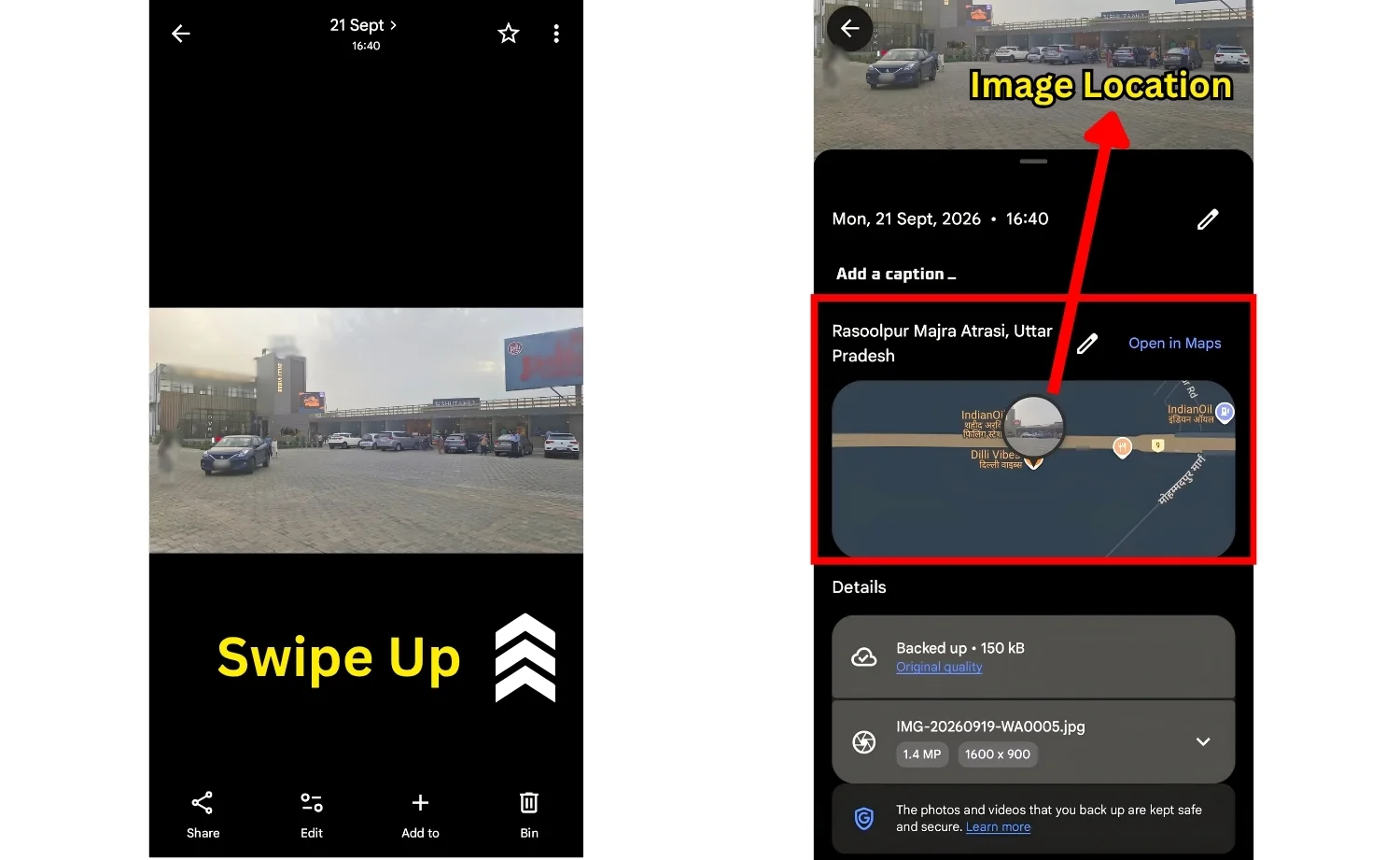
How To Find Out Where a Photo Was Taken on Google Photos On Mobile App
- Open Google Photos.
- Open photo’s information/details view by swiping up.
- Look for the location or map shown with the image.
- If coordinates or a recorded location are available, use them for next verification step.
Find Location From a Photo Without GPS (Reverse Image Search)
When there is no GPS data, your task changes. You are no longer analyzing stored coordinate. You have to find clues that can help you identify and narrow your location search.
Practical sequence is which included steps such as:
- Reverse image search
- Visible clues
- AI estimation
- Map verification
Reverse image search is useful when same image, or very similar version, exists online. AI-based geolocation is more useful when image has geographic clues but no published duplicate. Current photo-location guides use this same general progression from EXIF to reverse search and visual analysis.
How to perform a reverse image search
- Open images.google.com
- Select Search by image.
- Upload the image.
- Review visually similar images.
- Open pages that contain same photograph.
- Look for a place name, article title, landmark name or original source.
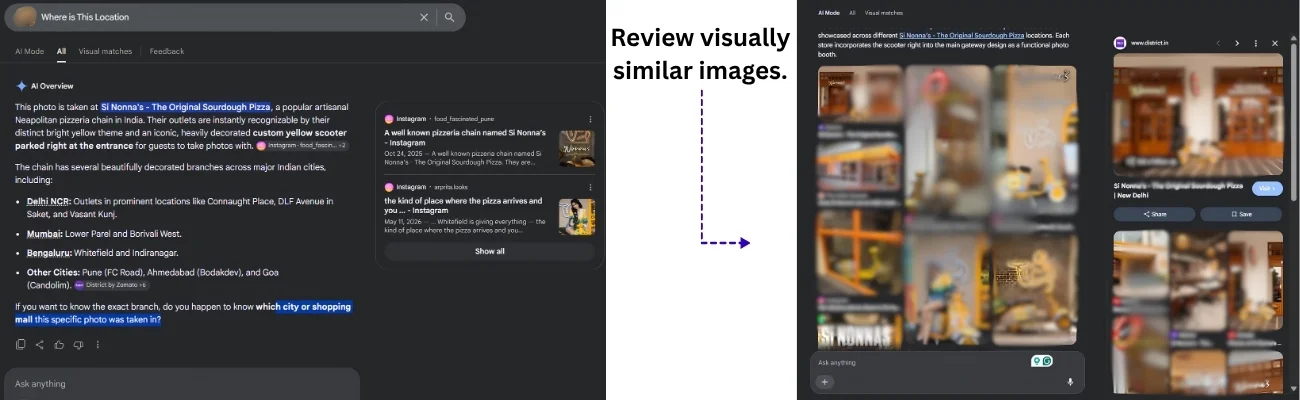
- Compare the result with the image you actually have.
Google’s current image-search documentation supports uploading an image or using an image URL, and it can return related images and pages containing the image or a similar image.
Use AI Geolocation To Find Out Where a Photo Was Taken
AI photo-geolocation tools can give you an estimate where image was taken through analysis of visual characteristics. This includes buildings, road layouts, signs, vegetation. Unlike EXIF extraction this approach works when photo do not contain GPS data. It can give just an estimate. To get accuracy via this method make sure the photo you are using to find its location should have the following:
- Readable Text
- Distinctive Landmark
- Identifiable Surroundings
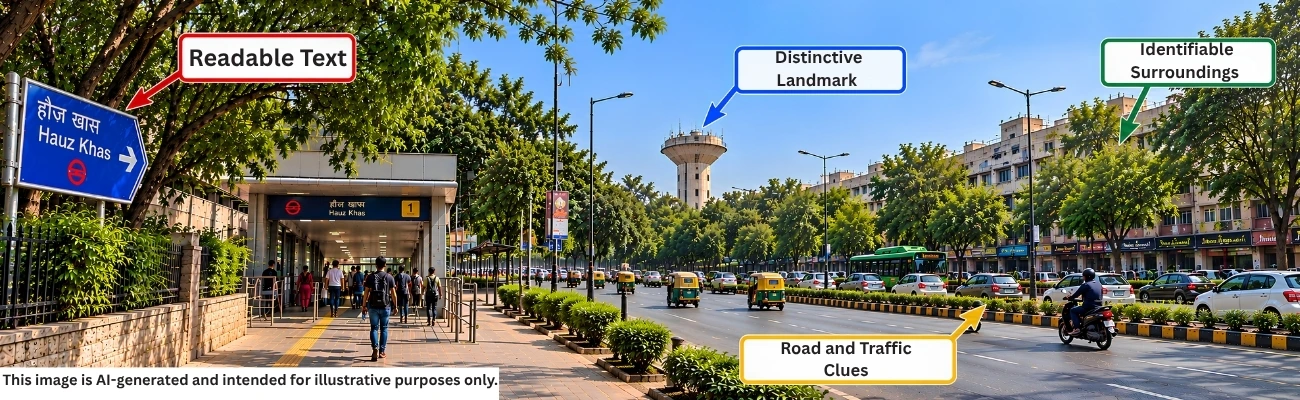
As an investigator kindly cross verify as Artificial Intelligence can hallucinate and go wrong. These systems analyze geographic features, then return you likely location or coordinates.
How to use an AI photo-location service
- Choose service that supports image geolocation.
- Upload photo and give a prompt to analyze an image as per your requirements.
- Wait for predicted location.
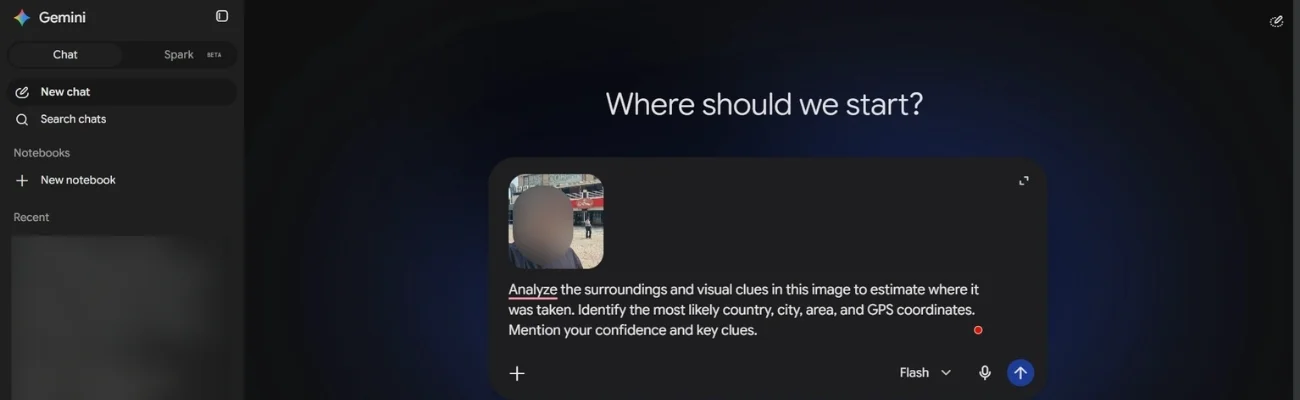
- Record suggested city, region or coordinates.
- Review information provided.
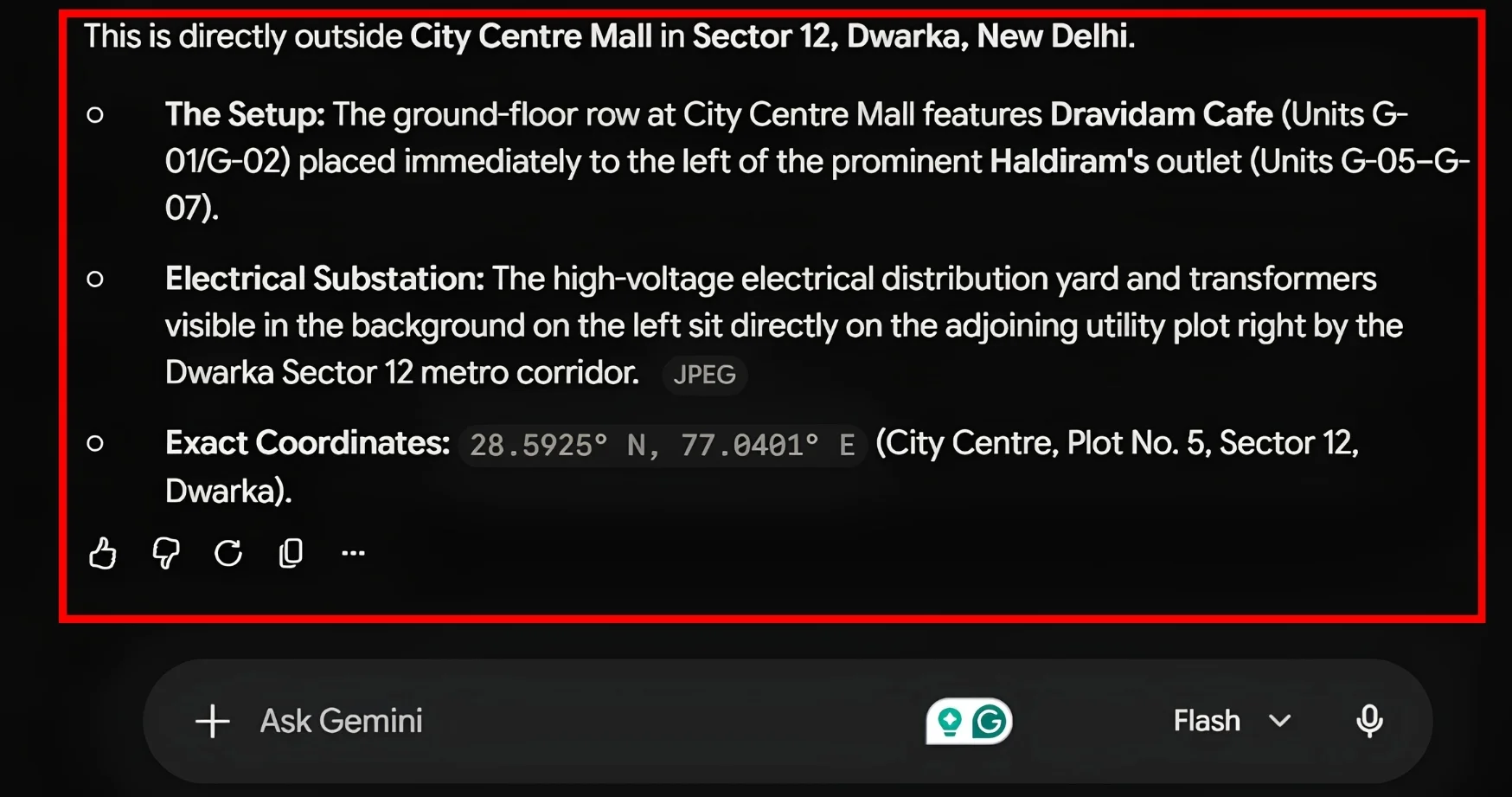
- Check prediction with visible clues.
- Verify result using a map before relying on it.
You can use AI assistants such as Gemini to analyze a photo’s surroundings and visual clues. Gemini is not a dedicated geolocation tracker, so its location suggestion should be treated as an estimate and should be cross verified with other sources.
AI has stronger evidence when photo contains distinctive geographic features. Recognizable landmark gives AI model much more to work with than blank wall room. Specialized geolocation services themselves acknowledge that accuracy depends on the image and how distinctive its geographic features are.
Use Forensic Analysis When the Photo Is Digital Evidence
For a personal vacation photo, EXIF, Lens and Maps is all you need. For investigations, question becomes much larger. The image may be attached to an email, part of a mailbox export. It may sit alongside messages, timestamps, attachments and other digital evidence.
In these situations, simply uploading image to a location-finder website may not be enough. In such situations, Google Maps may not able to provide the perfect location of a photo. Therefore, users have to rely on an automated solution which is the Best Email Analysis Tool. With this utility, one can easily extract data from an image file. Moreover, one can easily perform raw image digital forensics using this utility.
Privacy and Accuracy: What to Check When Using Photo Location Tools
Online tools such as Google Lens, Gemini, reverse image search through Google and photo location finders can help in identification where a photo was taken. Results can vary and uploading images to not so trusted third party services can involve:
- Privacy risks
- Evidence handling risks
We have developed a list of points to keep in mind when using these tools.
- Privacy: Photos reveal faces, homes, license plates, workplaces and other identifiable details. Before uploading an image, check tool’s privacy policy to understand if uploaded images are stored, shared, retained and used to train AI systems.
- Metadata Exposure: Image file can contain EXIF metadata, including GPS information, timestamps and camera or device details. Depending on how service processes uploads. Image you will upload can also be transmitted to third party never assume every tool removes image metadata.
- Chain of Custody: If photo is to be used in legal, HR and police investigation, preserve original file unchanged. Work on a copy and document how evidence is collected and handled. Follow applicable procedures to maintain evidence integrity.
- Sensitive Photos and Investigations: Avoid uploading sensitive photos to public tools. Use approved and verified methods and follow your organization’s privacy and evidence handling procedures.
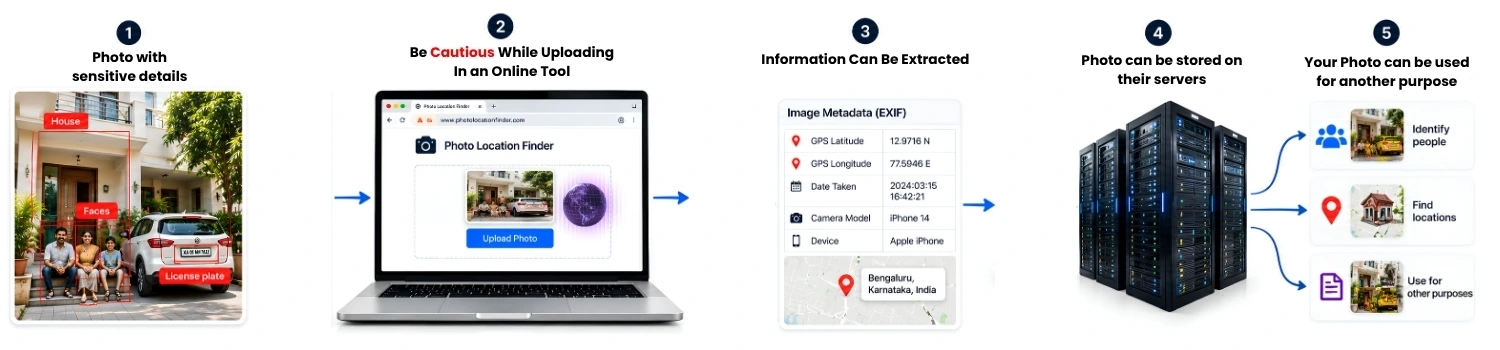
Safer approach for non-sensitive photos
- Create copy of that image,
- Copy and blur private details.
- Remove sensitive metadata from the photo if necessary.
Once this is done upload prepared copy after checking service’s privacy policy. Verify suggested location using map and independent evidence.
How to Find Out Where a Photo Was Taken Using the Secured Photo Location Finder
MailXaminer is the top email forensic solution used globally. If you are done with all the manual ways not found a solution for how to find where a picture was taken, then you can blindly trust this professional solution. This approach can simply locate the origin of a photo plus helps you in so many advanced ways while performing digital evidence collection.
Using a Photo Location Tracker Tool for Exact Results
- Step 1. Set up this advanced software on your system and start analyzing the images in detail without losing any properties of the image. First, create a new case to find where a picture was taken.
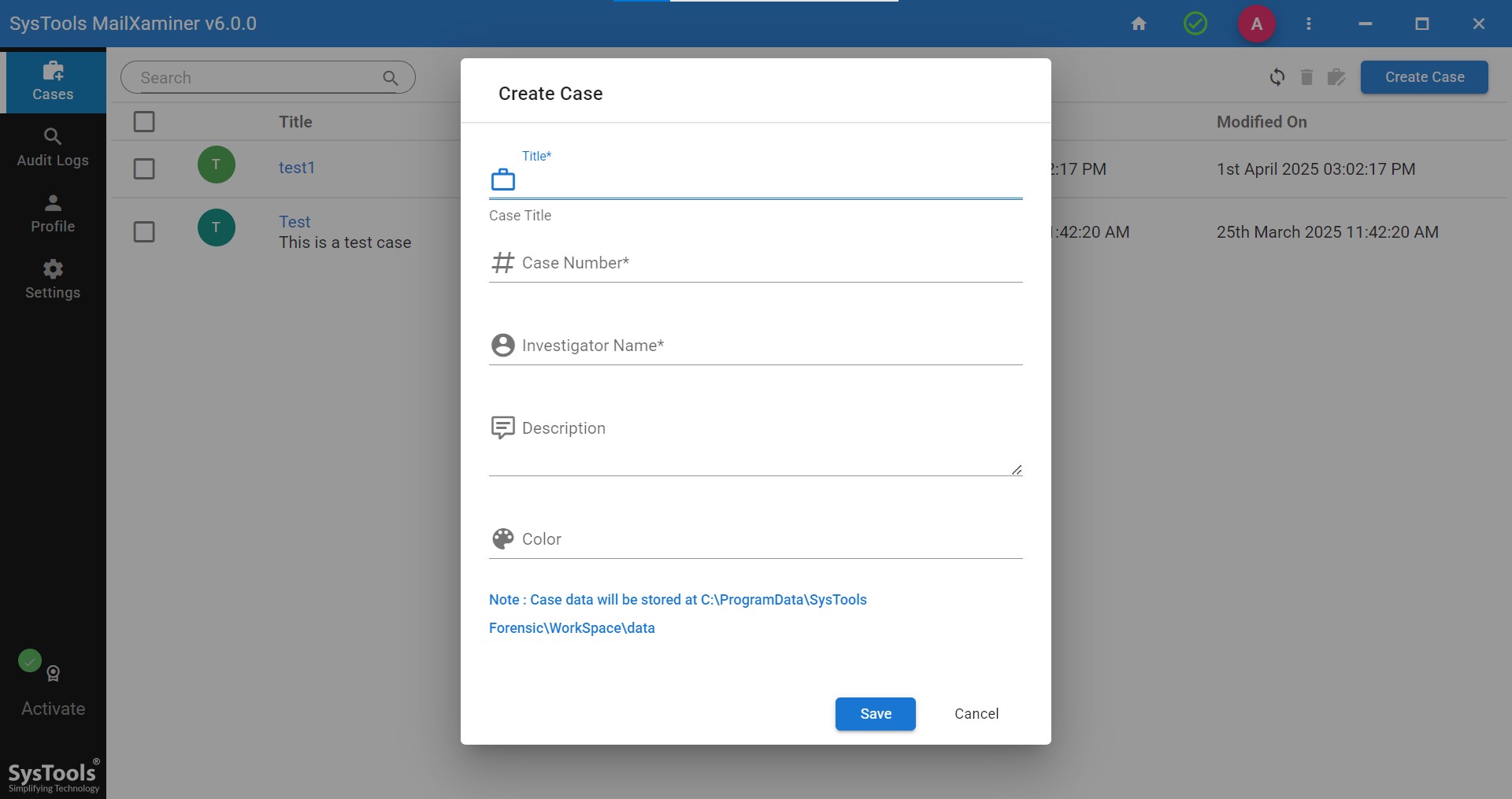
- Step 2. Now add evidence into the case to deeply analyze files and their attached photos for the location.
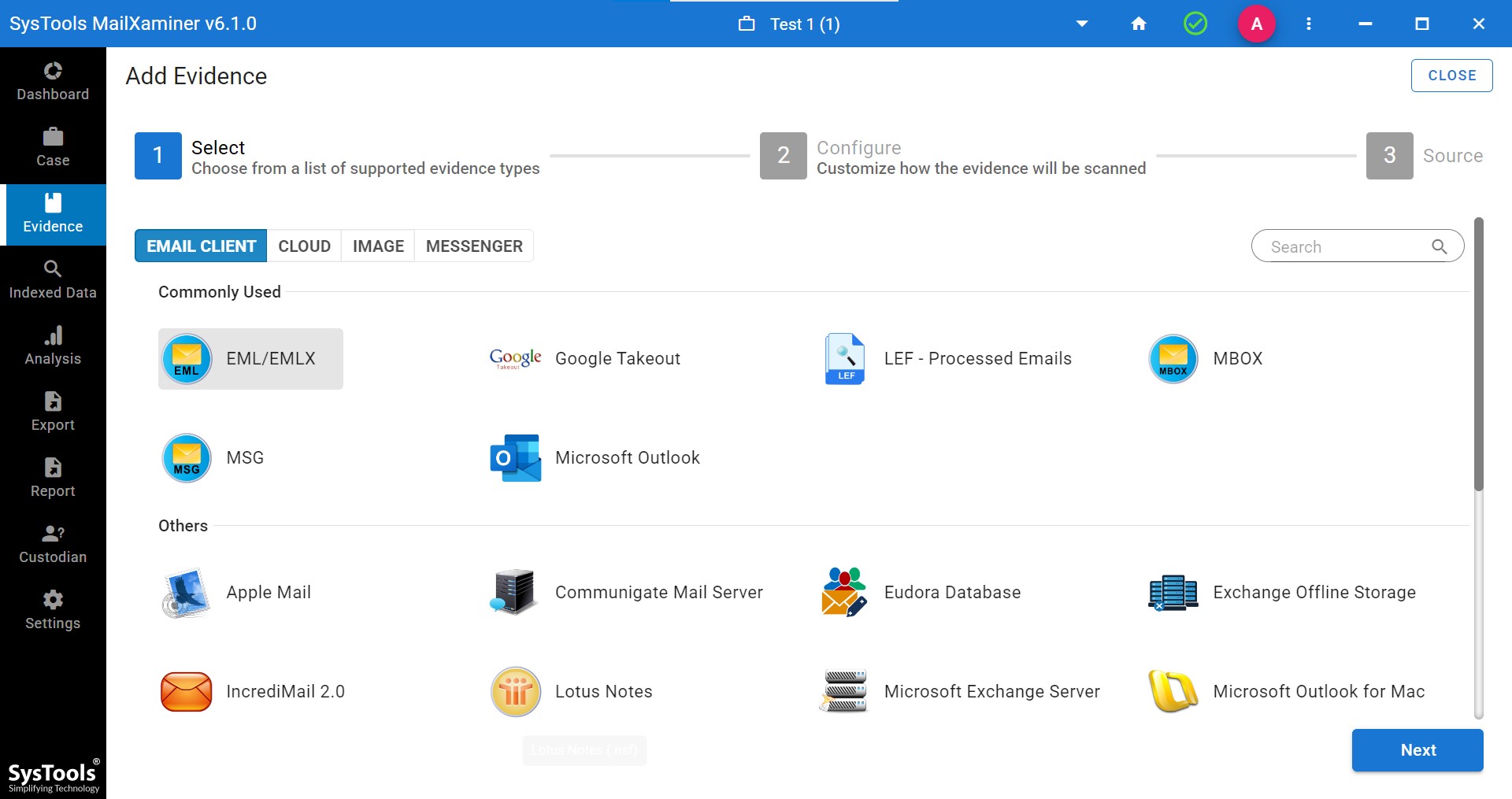
Note- Here we have selected EML as an email client. You will have various options to select as per your requirements, or your file consist of. Software will provide you 30+ file format with cloud applications and image formats as well.
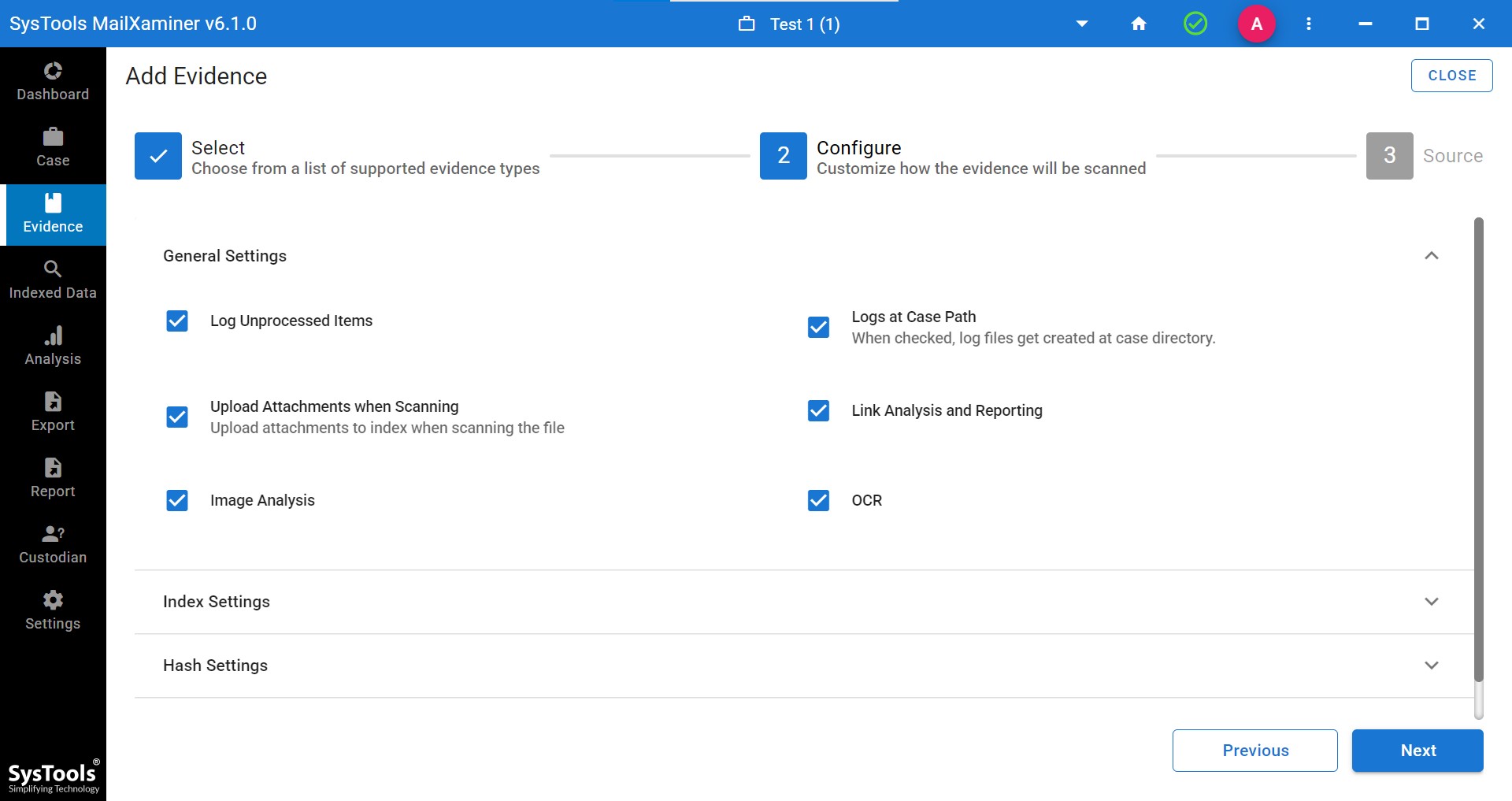
- Step 3. Then, apply the general settings as per your requirements. Here software asks you for the settings as per the required results, like OCR analysis, image analysis, logs, unprocessed items, etc.
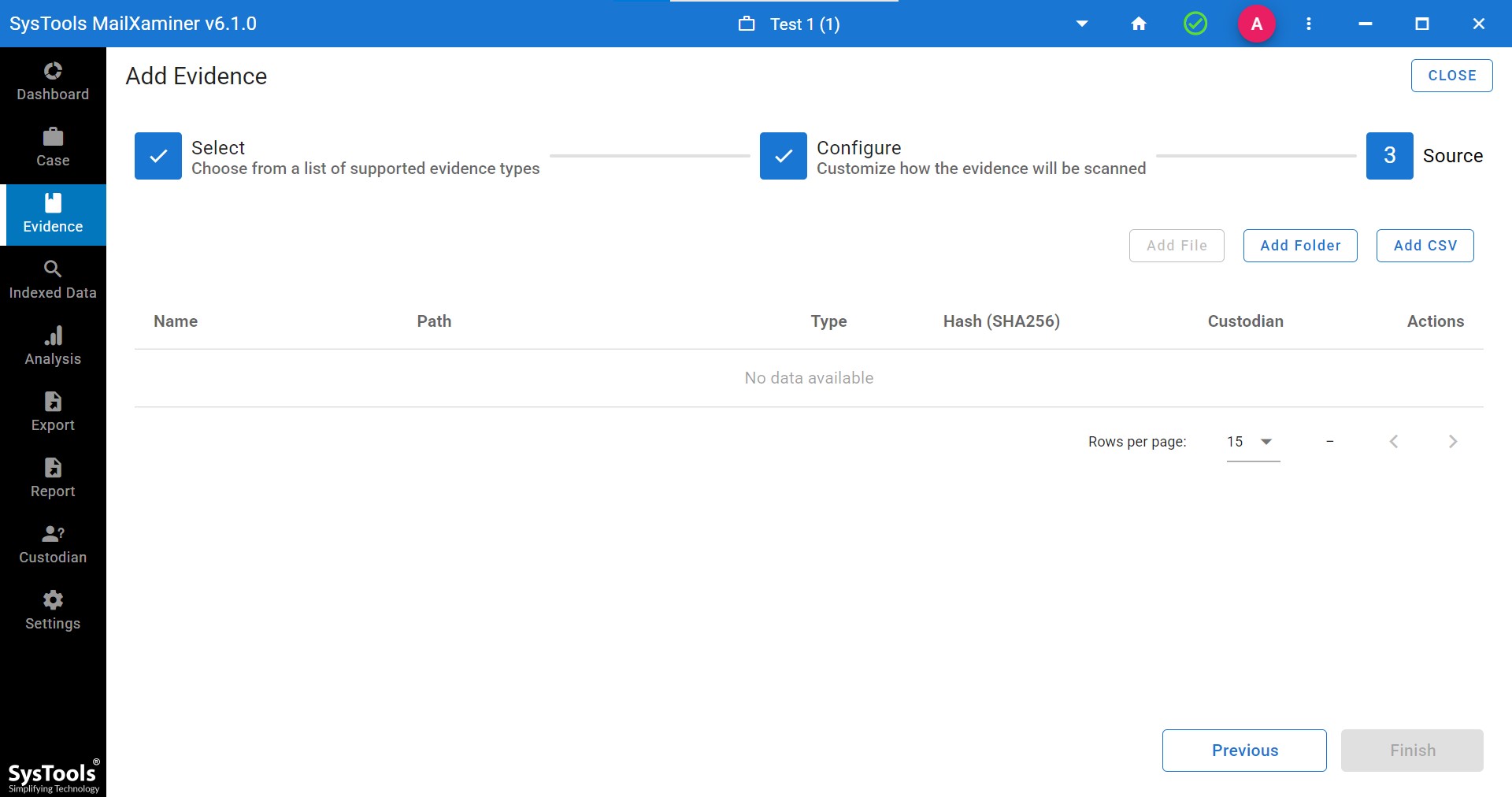
- Step 4. Now, the window to add a file/ add a folder opens. Add the file and proceed
Note- Here we are proceeding by adding the folder as evidence into the software.
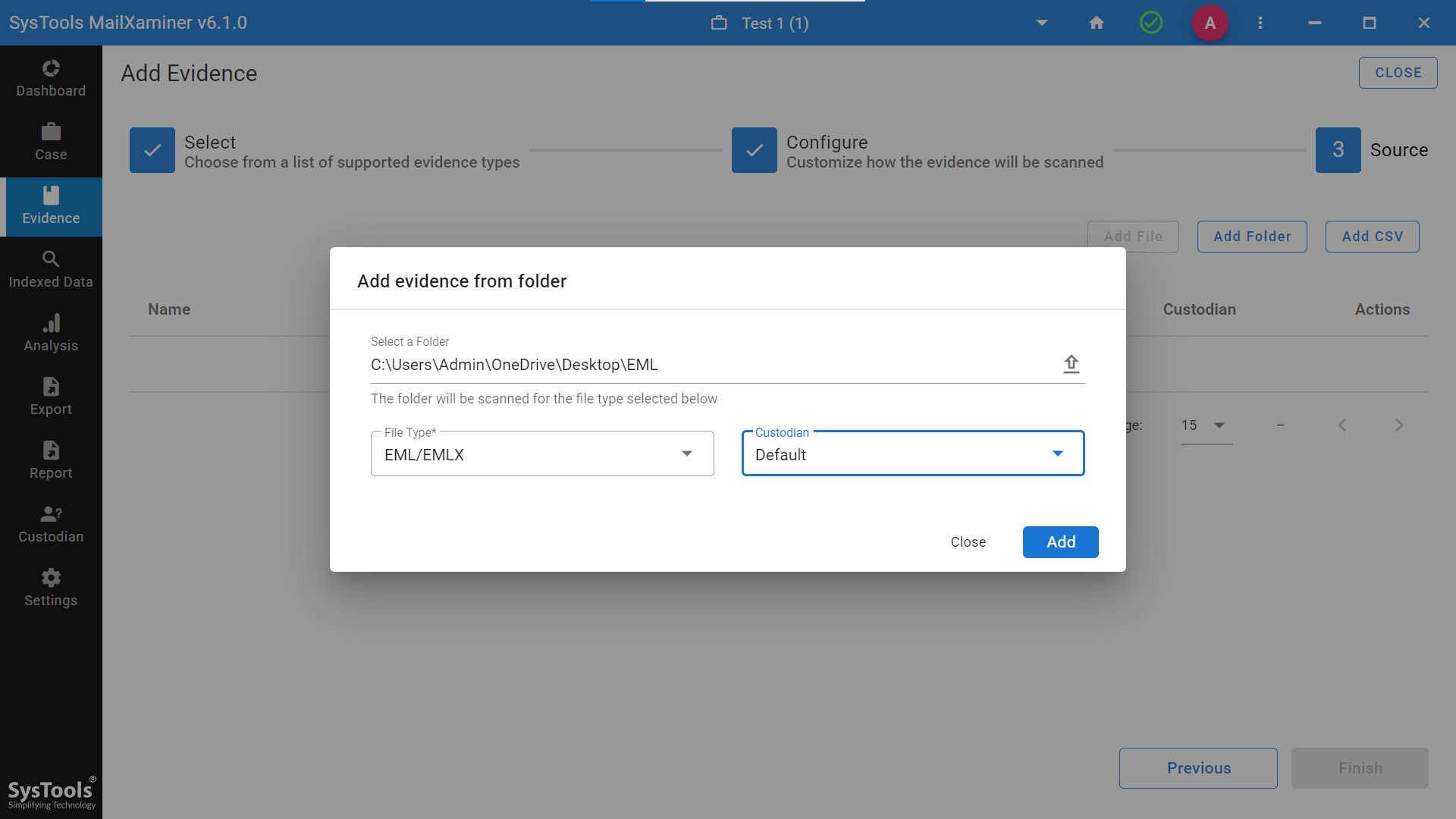
- Step 5. After the file/folder is added, you need to enter the folder path. It looks like this.
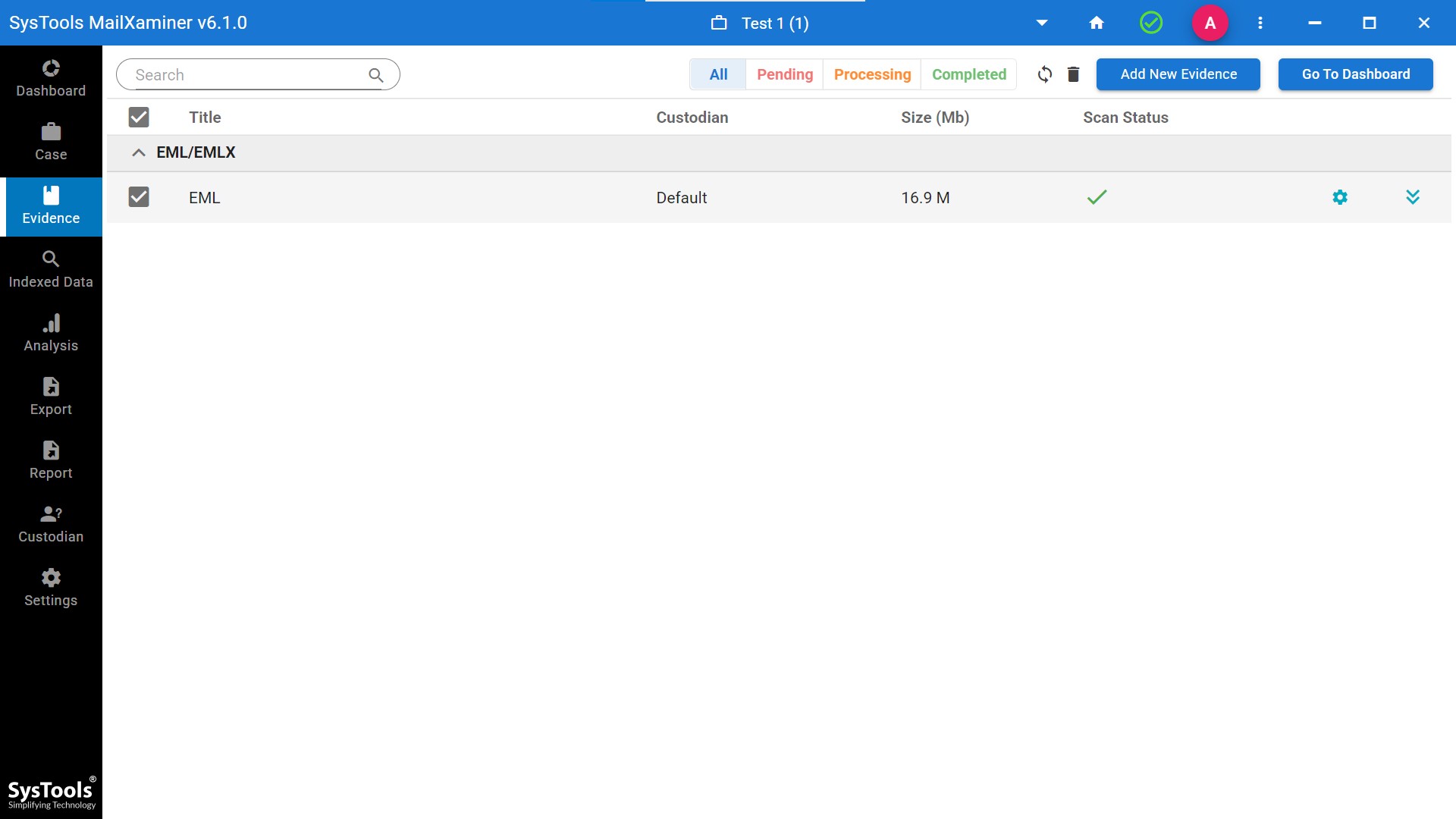
- Step 6. Now, the dashboard is visible with all the attached files icons displayed in every email.
- Step 7. The software displays complete indexed data, including the subject and the source of the received file.
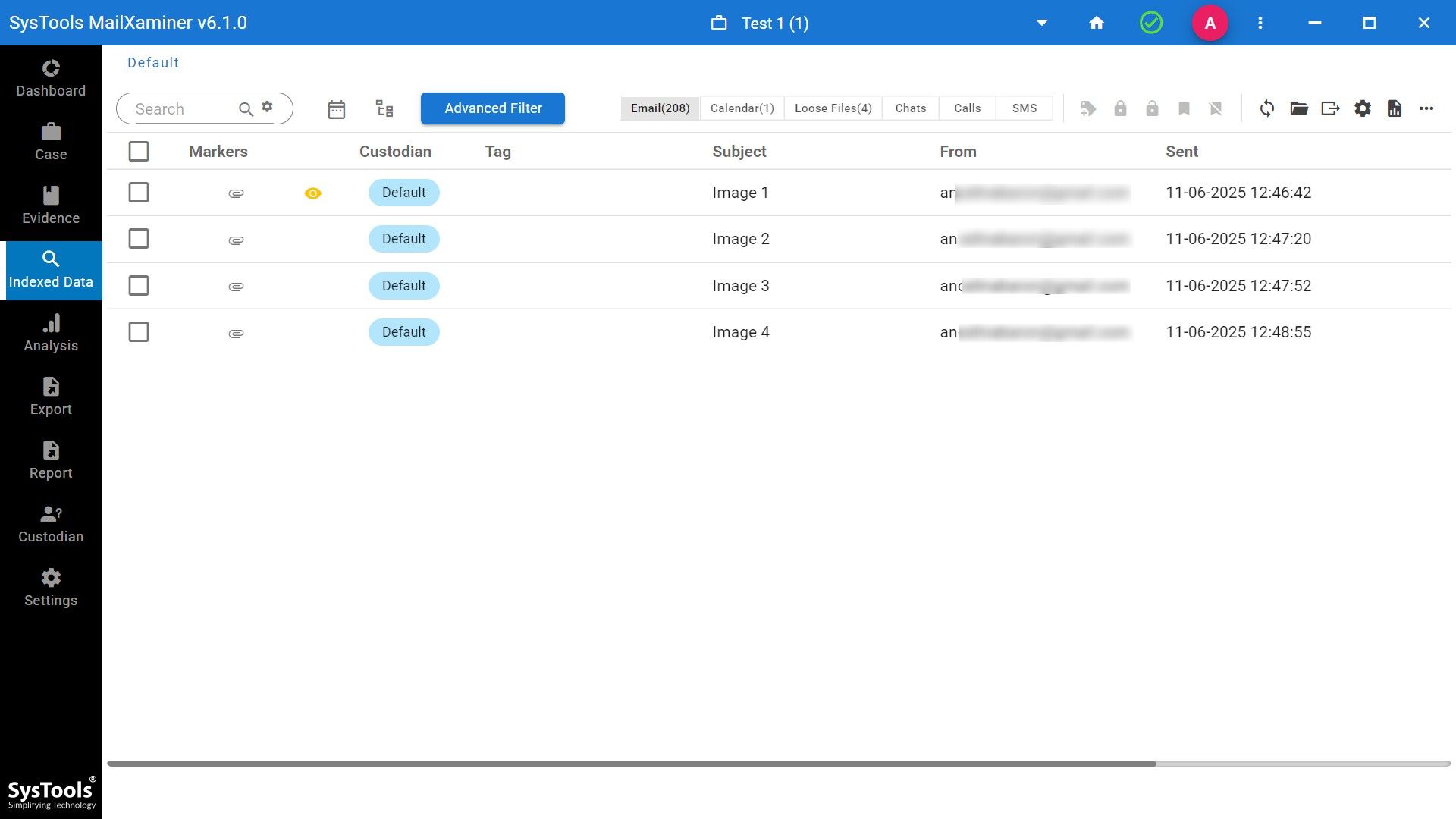
- Step 8. Now, check manually each email, and you will get the option of preview, properties, and Geomap.
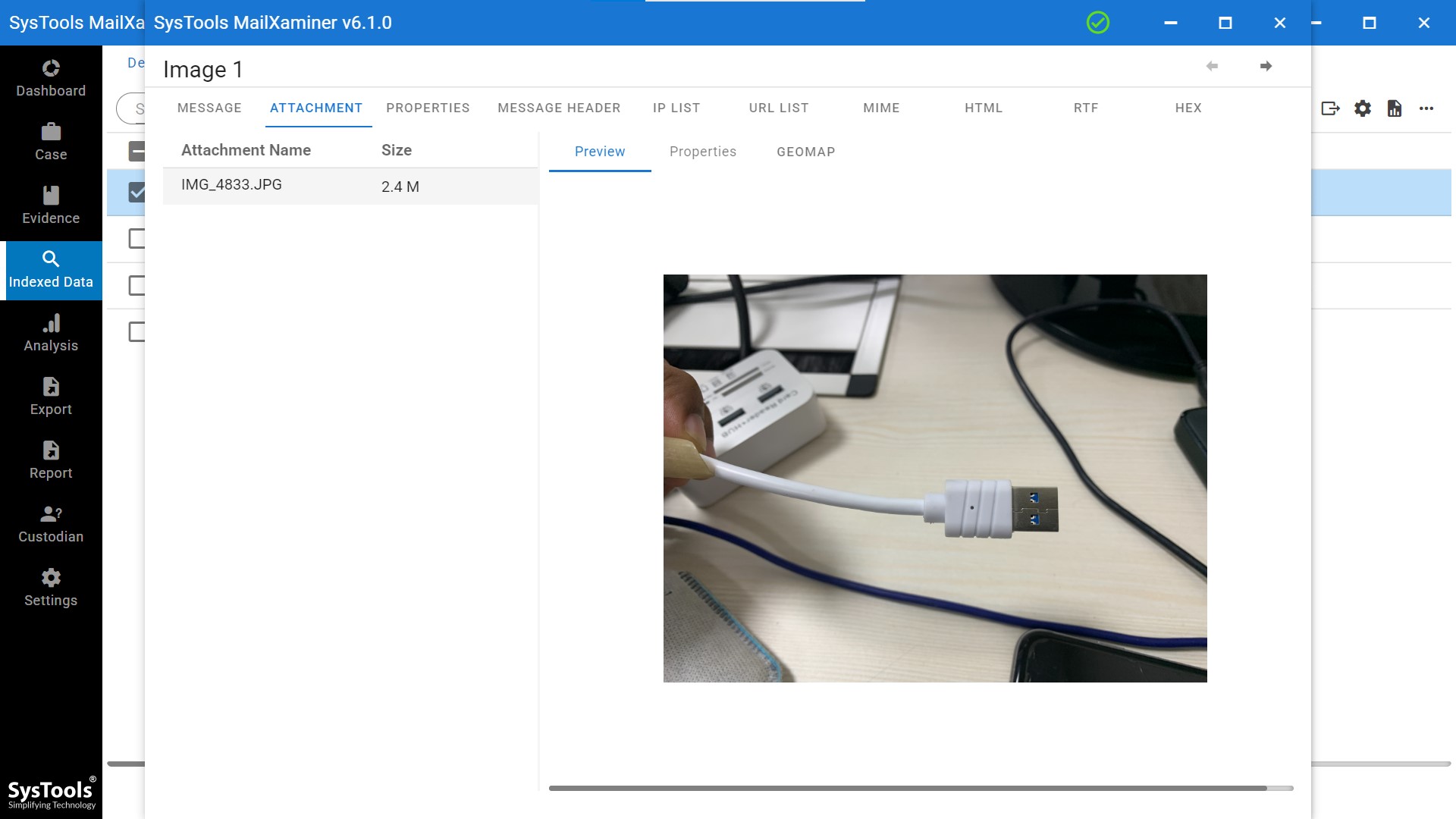
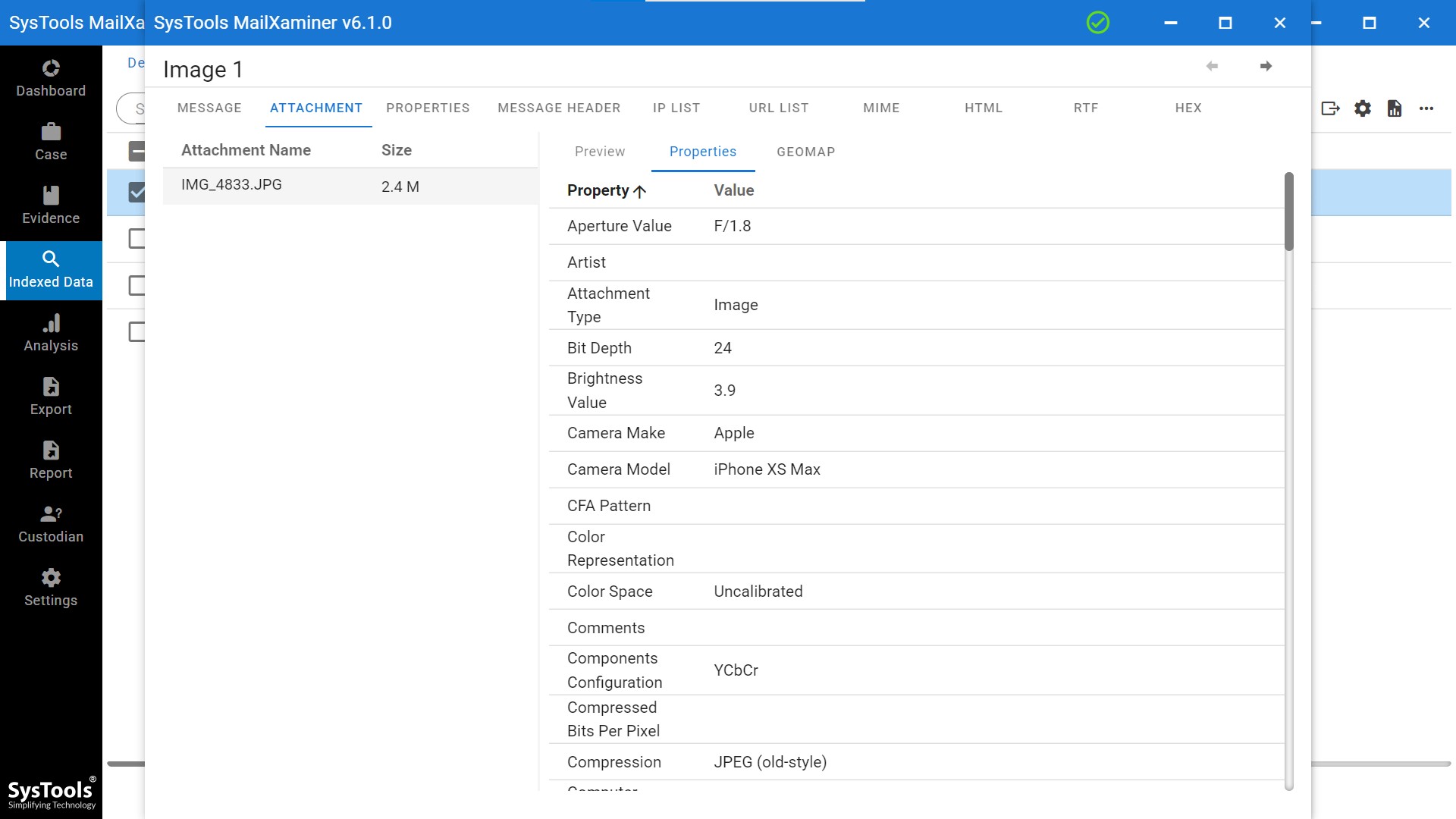
- Step 9. The software shows you advanced details like where a picture was taken and how to identify the location from a photo using the Properties feature.
- Step 10. Lastly, software provides the Geo-map feature through which you will be able to get GPS location from a photo.
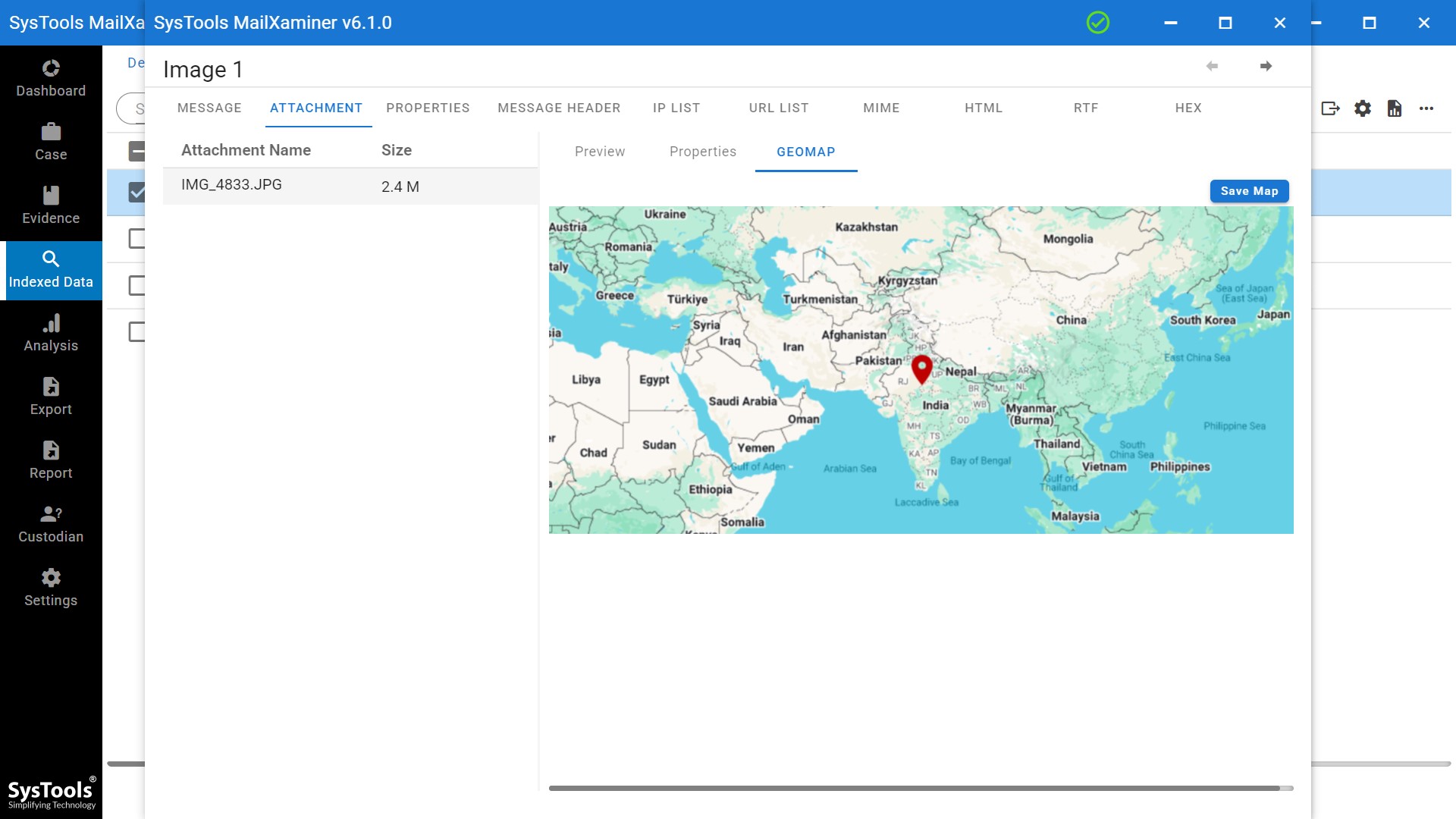
You cannot only track the location where the photo was taken, but also view the complete longitude and latitude measurements by tapping on the location. The tool will display the GPS of the image along with details. Moreover, you can easily zoom in and zoom out to view the details easily.
The user can also save the map and export image files into multiple export formats available. This will help the user to identify the location from the photo and view it in some other application like Google Earth.
Comparison of the Best Method to Find Where a Photo Was Taken
| Method | Requirement | What It Can Provide | Main Limitation |
|---|---|---|---|
| EXIF/GPS | Original File with GPS Metadata | Recorded Coordinates | Metadata can be absent or altered. |
| Google Photos | Photo in supported library/context | Recorded or estimated location | Estimated location is not same as embedded GPS |
| Google Lens | Visual clue or searchable image. | Similar images, objects, landmark, images. | Do not guarantee exact location. |
| Reverse Image Search | Image Indexed Online. | Original sourced pages / matches. | No match if image is not indexed. |
| Visual analysis | Visible Geographic clues. | Location hypothesis. | Interpretation needed. |
| AI Geolocation | Sufficient visual clues. | Estimated location | Prediction required verification. |
| Maps/Street view | Candidate Coordinates Place. | Location verification. | Depends on available map imagery. |
| Forensic Analysis | Evidence + Original Email Files | Correlated Metadata / Evidence | Require proper evidence handling |
Finally, Found the Exact Location of a Picture!
Now we are well aware of “how to find out where a photo was taken?” topic. In addition, we are aware of the most appropriate solutions as well. Most of the users need to find minute details such as date of creation, location, etc. associated with the images for analysis purposes.
The problem occurs when a user is not able to find the exact location where a user took a picture. Thus, the user can resolve the problem by implementing the manual way to find the information associated with the photo and then use Google Maps to identify the location from a photo.
Simple Workflow to Remember
When you have mystery photo, do not jump between tools.
Use this order:
- Original photo: Check EXIF.
- Stored in Google Photos: Check recorded or estimated location.
- Recognizable object or landmark: Try Google Lens.
- Can this image exist online: Use reverse image search.
- No metadata or match: Study visual clues.
- Need an additional lead: Try AI geolocation.
- Is image part of digital evidence? Move to forensic analysis.
This workflow keeps process simple and avoid common mistake of treating one method as universal solution.
Wrapping-Up
In most cases, the users are not able to get the exact location via the manual method. Still unsure where a photo was taken? Try our advanced image location tracker and get precise GPS data in seconds. The solution must be an excellent photo location tracker. Simply, using image location finder software discussed in this guide can be a great utility, in that case, to find the location of the photo in just a few clicks.
Frequently Asked Questions
Q: How to extract exact GPS coordinates from digital image file?
A: To extract GPS coordinates:
- Open original file in an EXIF metadata viewer.
- Right-click on an image file in Windows PC and select Properties.
- Click on details tab.
If location tagging permission would have been enabled on camera device during image capture. User will see decimal or degree values for Latitude and Longitude. Copy these latitude and longitude values and paste it into Google Maps will pinpoint precise geographic origin.
Q: Can Google Lens identify where photo was taken ?
A: Google Lens can identify objects, visually similar images and web pages related to an image. It can be particularly useful to check the location where picture is clicked through identification of landmarks, signs, buildings and other distinctive visual clues.
Q: Can photo’s location be wrong?
A: Yes. location may be estimated, manually added, altered, or inferred incorrectly. For important conclusions, compare location with original file, visible clues, map information and other independent evidence.
Q: How can I find where a photo was taken if GPS metadata is missing ?
A: When GPS metadata is missing, user can find photo’s location using visual telemetry analysis. In this user have to follow process that involves uploading image to multimodal AI model or any secured visual tool search like Google Lens.
Once this is done, instruct that tool to analyze geographic features such as architectural styles, road sign layouts, solar shadow positions and regional utility infrastructure to generate location estimate.
Q. How to perform a reverse image search to find location?
- Go to images.google.com
- Click the camera icon (or use Google Lens)
- Upload the photo or paste its URL
- Check results for matching locations or landmarks
Q: Can AI photo-location finders hallucinate or give wrong location ?
A: Yes, Generative AI tools can hallucinate as they guess location by analyzing pixel patterns rather than looking at hard sensor logs. If photograph provided lacks structural landmarks or environmental traits then AI can hallucinate.
For critical digital forensics investigations, AI output should be cross verified with server logs, hashes and original metadata file.