Guidelines to Find Attachments in Outlook Email Chain Investigation


Quick Answer: To find attachments in an Outlook email chain,
- Open the conversation.
- Locate individual message that originally contained file.
In newer Outlook versions, you can also search for sender, file name, or email topic and filter the results to show messages with attachments. In Classic Outlook, the search operator hasattachments:yes can quickly return messages containing attachments.
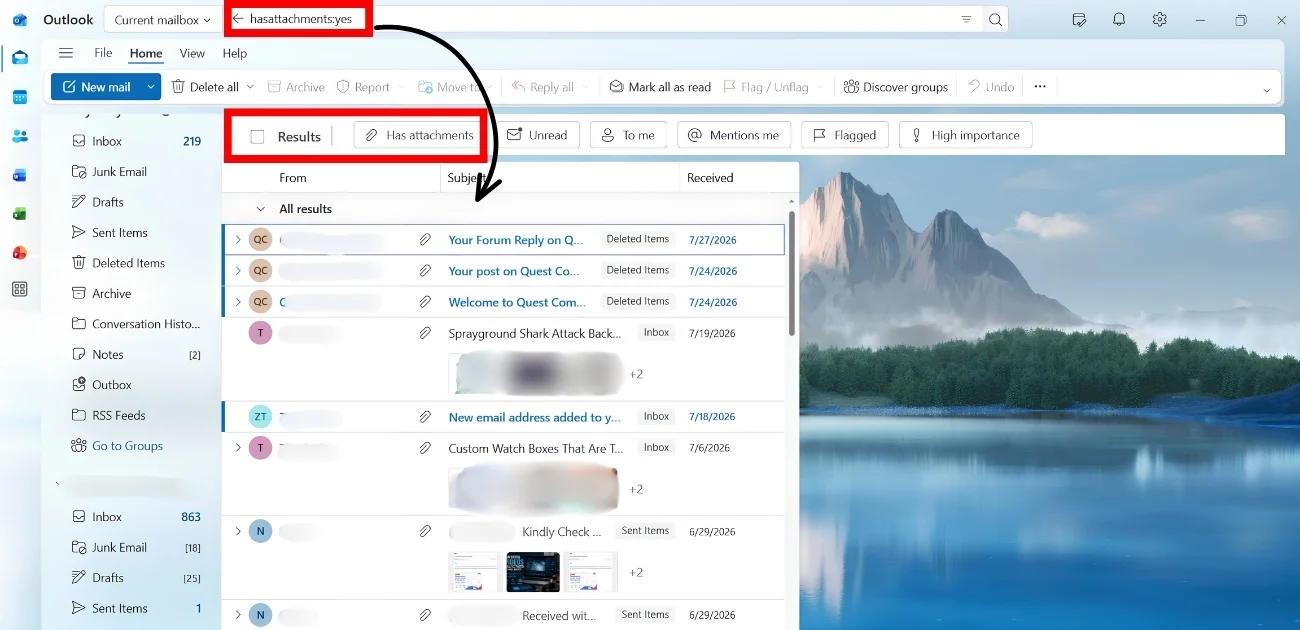
If you are staring at long thread thinking, “I know that file is somewhere in here, but where?”, this is the situation many outlook users face. Outlook conversation can contain many replies, forwarded messages, and separate attachments. The best part is that you do not need to read complete thread from top to bottom.
This guide will show you:
- Where to look first
- How to search faster.
- What to do when an older attachment seems to disappear.
- When normal Outlook search is no longer enough.
Start Here: Find Attachment Inside the Conversation
First thing to understand is simple: Outlook email chain is made up of individual messages. An attachment is associated with the message that is in that chain, that contains it.
So if the first email included Project-Proposal.pdf, a later reply does not automatically make that file a new attachment to every message in the conversation. This is the reason scrolling to newest reply may not show you the file you Project-Proposal.pdf.
Open Original Message in the Thread
- Open Outlook conversation that contains the email you are looking for.
- Then look through the individual messages in thread. If older messages are collapsed, expand them.
- In conversation view, Outlook can show an attachment indicator next to the individual item that has an attachment. Microsoft also recommends looking through the items in the conversation for the paperclip indicator when using Outlook.com.
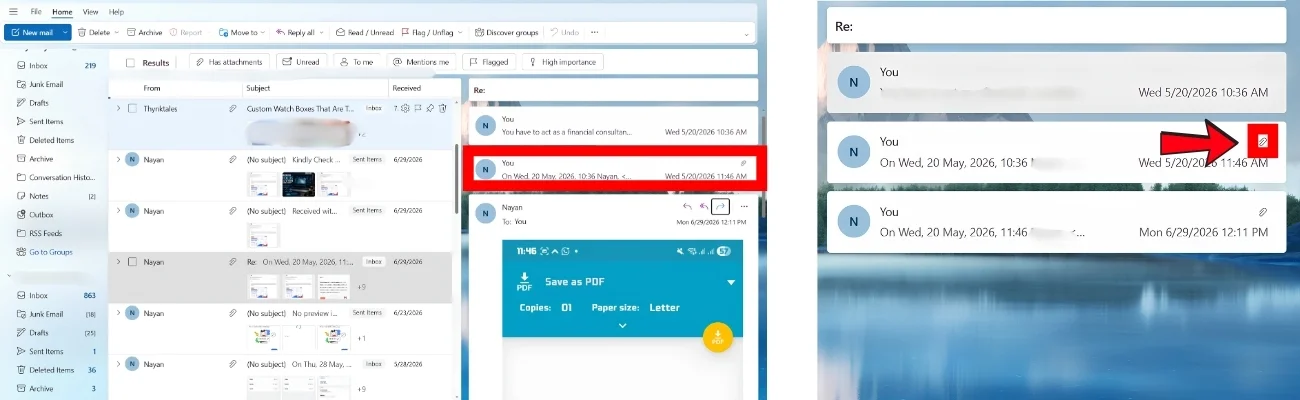
Once you find the message with the attachment, open that individual message and save your attachments.
Look for the Message That Contains the File
Here is an easy way to think about long email chain:
- Email 1: Quote.pdf attached
- Email 2: “Thanks, I received it.”
- Email 3: “Can you confirm the price?”
- Email 4: “Yes.”
In this example conversation contains the attachment, but Email 4 do not contain Quote.pdf. This small distinction explains many “missing attachment” situations. If the file is attached to earlier message, go back to that message. If you cannot easily locate it by scrolling, do not keep searching manually. Use Outlook Search.
Use Outlook Search When Thread Is Long
For short conversation, expanding messages is quickest option. For a thread with many replies, search is faster. In New Outlook, Outlook.com, and Outlook on the web, start by clicking the Search box.
Enter a useful keyword, such as:
invoice
or
project report
Then choose Files or use the available Has attachments filter to narrow the results. Microsoft currently documents both approaches for newer Outlook experiences. If you do not remember the sender or file name, you can still select Files to display messages that contain attached files. That turns a large mailbox into a much smaller list of likely matches.

In Outlook, Microsoft documents another direct option. Click the Search box and enter:
hasattachments:yes
Then press Enter.
Outlook will show all emails containing attachments within current search scope. This makes it most useful when you know email exists but cannot remember which message contained file.
Narrow Your Search by Sender, Subject, or File Name
Attachment search becomes more powerful when users combine it with something you already remember. Maybe you remember the sender, subject contained “contract.”, attachment was called invoice-march.pdf.
Outlook’s search tools support refinements such as From, Subject, and Has Attachments. This allow you to reduce large mailbox to a much smaller set of messages.
Goal is simple:
“Give Outlook one useful clue instead of asking it to search blindly”
Note: Microsoft’s current Outlook documentation also lists hasattachment:yes and hasattachment:true as supported search forms in its general search guidance.
Outlook’s interface and search capabilities differ by version, use filter buttons shown in your version when available. We hope you are getting clarity on finding attachments in Outlook email chain.
When Outlook Search Is No Longer Enough
Outlook is excellent for everyday mailbox searches. If message is available and you remember enough information to locate it, its built-in search tools may be all you need. But an investigation on the other hand can look very different.
- An investigator may be working with a PST or OST file
- Large collection of email evidence.
- Deleted or damaged data.
- Multiple custodians, or attachments that need to be examined alongside the messages that contain them.
At that point, manually opening conversations one by one can become slow and difficult to manage. Question changes from:
“Where is this attachment?”
to:
“What does this attachment tell me about the evidence?”
That is where email forensic software becomes useful.
Why Find Attachments in Outlook Email Chain Instead of Normal Mail ?
- Stronger Evidence: As investigators might be aware, isolated emails are a weak form of evidence. Criminals can easily change its metadata, thereby confusing the investigators regarding the timeline of events. However, when a clear conversation between suspected entities is done over multiple email threads, it becomes quite hard to manipulate the evidence.
- Chain of Custody: Any crime or conspiracy includes both victims and perpetrators. Establishing a clear distinction between the two is the responsibility of the prosecutor, in this case, the investigation agent. That’s why, if one has access to email chain data, it becomes easier to provide a progression of communication.
- Unearthing Criminal Network: With the help of email chains and the attachments found within them, detectives can track the collaborators easily. This is not possible with normal one-to-one emails.
- Crime Pattern Recognition: Any crime, even if it is digital, has its own distinct fingerprint that makes it efficient to find attachments in Outlook email chain. This is true for the conversations found in email chains. Law enforcement agencies can audit them to get a better grasp of the situation.
- Minimized Evidence Tampering Risks: With the attachments appearing repeatedly in the email thread, any attempted tampering or alteration will be easily noticeable. The data manipulation is also easily detectable through changes in size or metadata inconsistencies.
There are many other minor instances where email chain analysis is preferred over the alternative for how to see attachments in Outlook thread. Let’s now look at what differences exist between the types of email chains themselves.
Kinds of Outlook Email Thread and Related Attachments
Email threads or chains have come in a variety of different forms. Each of these requires a different investigation strategy.
- The most basic form of email thread is a back-and-forth conversation between two individuals. Even here, it is quite difficult to pinpoint the exact origin of the conversation, as criminals can easily delete the mail. So investigators often have to search through the entire conversation multiple times. This is not practical, as these conversations can go back years.
- When more than two people (or email IDs) are involved, it becomes a group email chain. Tallying which mail was sent to whom and at what point in time is challenging. Moreover, investigators now need extra effort to find attachments in Outlook email chain belonging to multiple different personalities. Doing all of this manually is out of the question.
- Cybercriminals might hijack a regular email ID and conduct their nefarious activities from there. In such a scenario, detectives might find a spoke-like thread structure. Here, scam mail originates from a single source and quickly spreads to a large number of hosts by taking advantage of unsecured auto-forwarding policies.
- In a few cases, the email threads in Outlook can also branch to several sub-conversations. Furthermore, these branches include various attachments. This branched email thread structure often ends up complicating the mapping of each attachment to a specific action.
This completes the discussion on the major kinds of email threads that can be encountered during cybercrime investigations. Now that we are aware of the complexities involved, let’s look at how to see attachments in Outlook thread and how choosing the right tool can ease up the task to find attachments in Outlook email chain.
Traditional Means to Find Attachments Inside Outlook Email Threads
Shuffling through the regular inbox to gather all attachments part of an email thread is too time-consuming. Instead, what investigators/users can do is trigger the conversation view.
Throughout the lifecycle of Outlook, many GUI changes have brought in some variations in the steps to trigger the conversation view. Not to worry, as we will provide you with the exact steps.
It is worth understanding why attachment can vanish from a thread in first place. Outlook’s conversation view only displays the paperclip icon on select messages by default, usually the most recent one, so file attached several replies back is often still present but simply not flagged.
This is common in forwarded threads, where the original attachment do not carry an icon on every later reply. Before assuming file was deliberately removed, use the Search bar’s Has Attachments filter, it locates files regardless of which message in the thread they belong to.
Analyze Attachments in OWA Email Chains
- Log in to Outlook web.
- Go to View
- Click on Conversations
- Select Group into Conversations
- Look for the email messages with a slant paper clip icon.
- Open it, extract/download the attachments, or perform a preliminary examination with the attachment preview option.
How a Professional Tool Helps in Attachment Analysis of Email Threads
MailXaminer is the first choice of law enforcement agencies for any email forensic requirement, such as, when they need to find attachments in Outlook email chain. With the user-friendly interface and built-in advanced filtering mechanisms, any investigator can pick out the relevant details regardless of their experience they have. The tool is purpose-built to limit the technical know-how involved, unlike traditional email forensics. It does so by laying out all the tools at the click of a button.
During specific digital investigations, like when detectives want to find attachments in the Outlook email chain, the tool easily outperforms the rest of the competition. Here is a reduced version of the long list of features present in the tool that further helps with how to see attachments in Outlook thread and similar tasks.
The tool highlights the deleted emails separately in the preview section. Using it, investigators can reconstruct the entire conversation that took place between the suspects. Moreover, it also restores the deleted attachments present in those emails, which can prove quite helpful in uncovering hidden details.
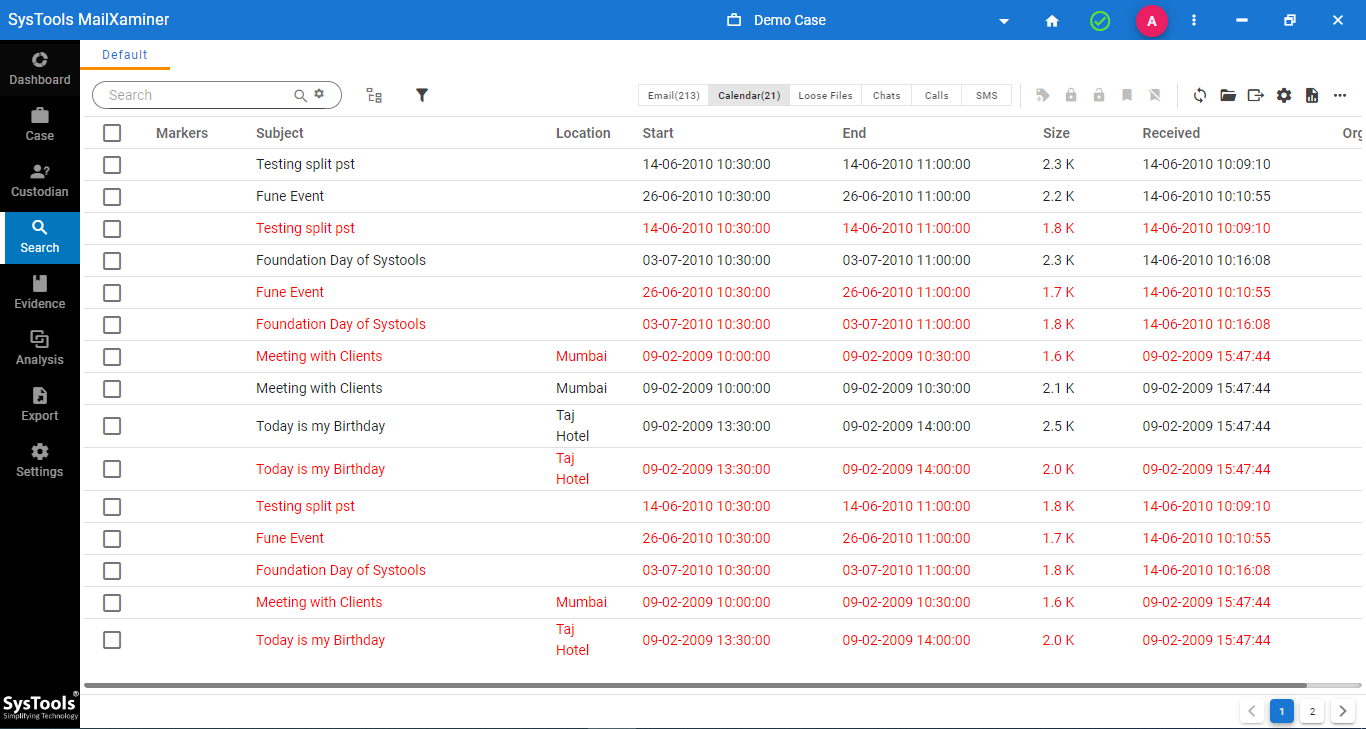
There are 8 different viewing options available within the tool to conduct email analysis. Each one has its own unique characteristics to give out all the information present in the source file. These are Message, Attachment, Properties, Message Header, MIME, HTML, RTF, and HEX.
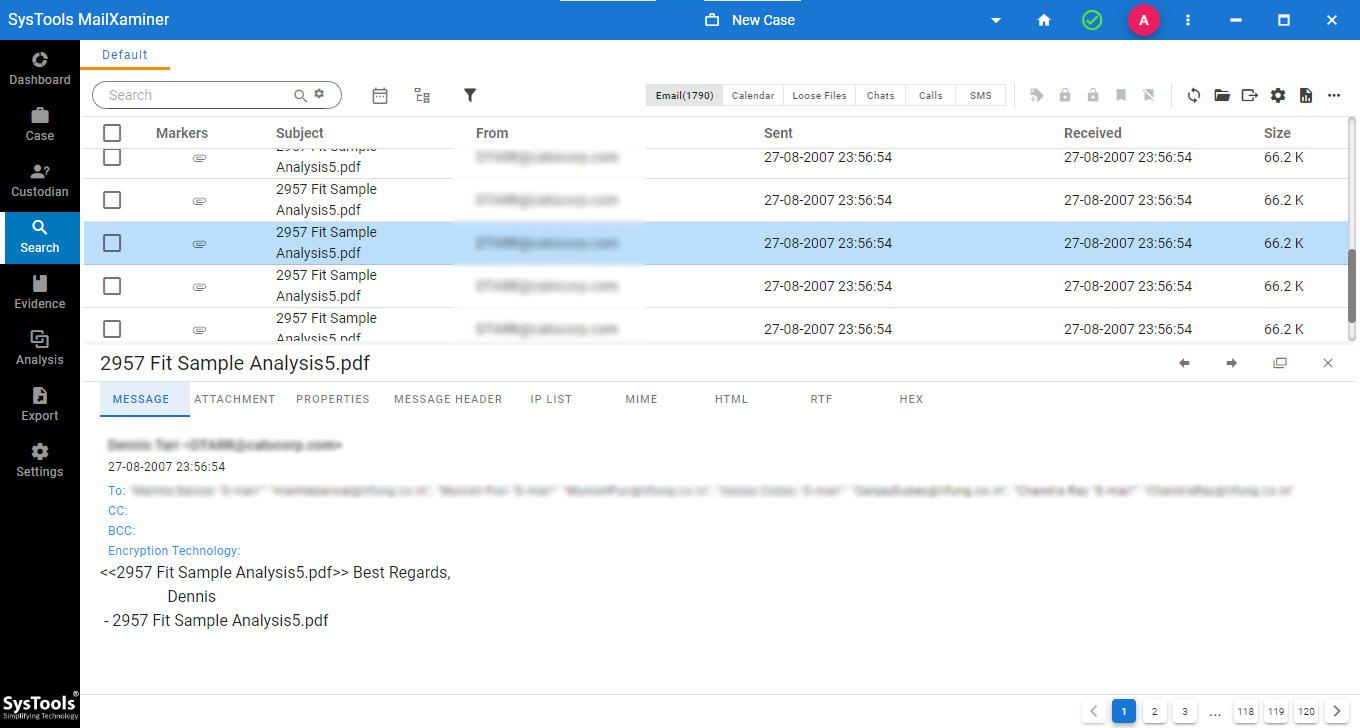
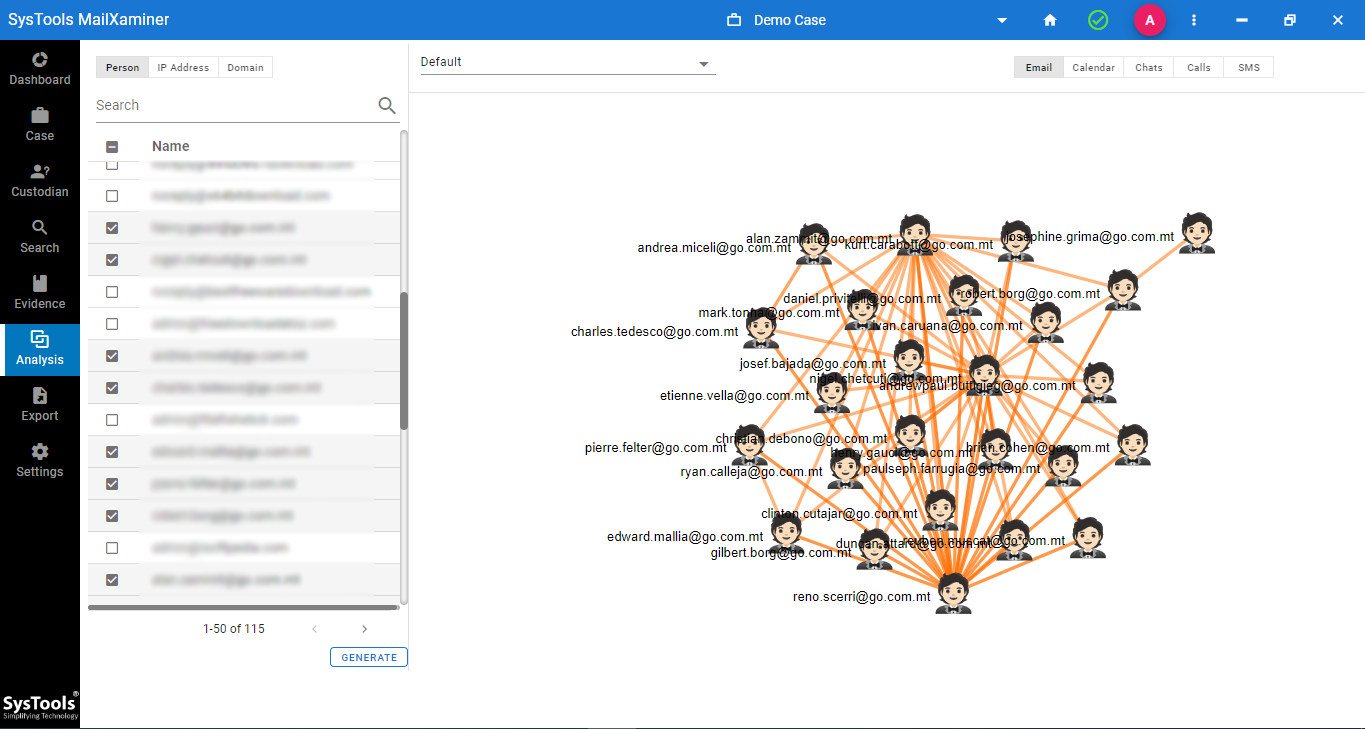
The tool has the option to automatically remove encryption and provide link analysis between the parties involved.
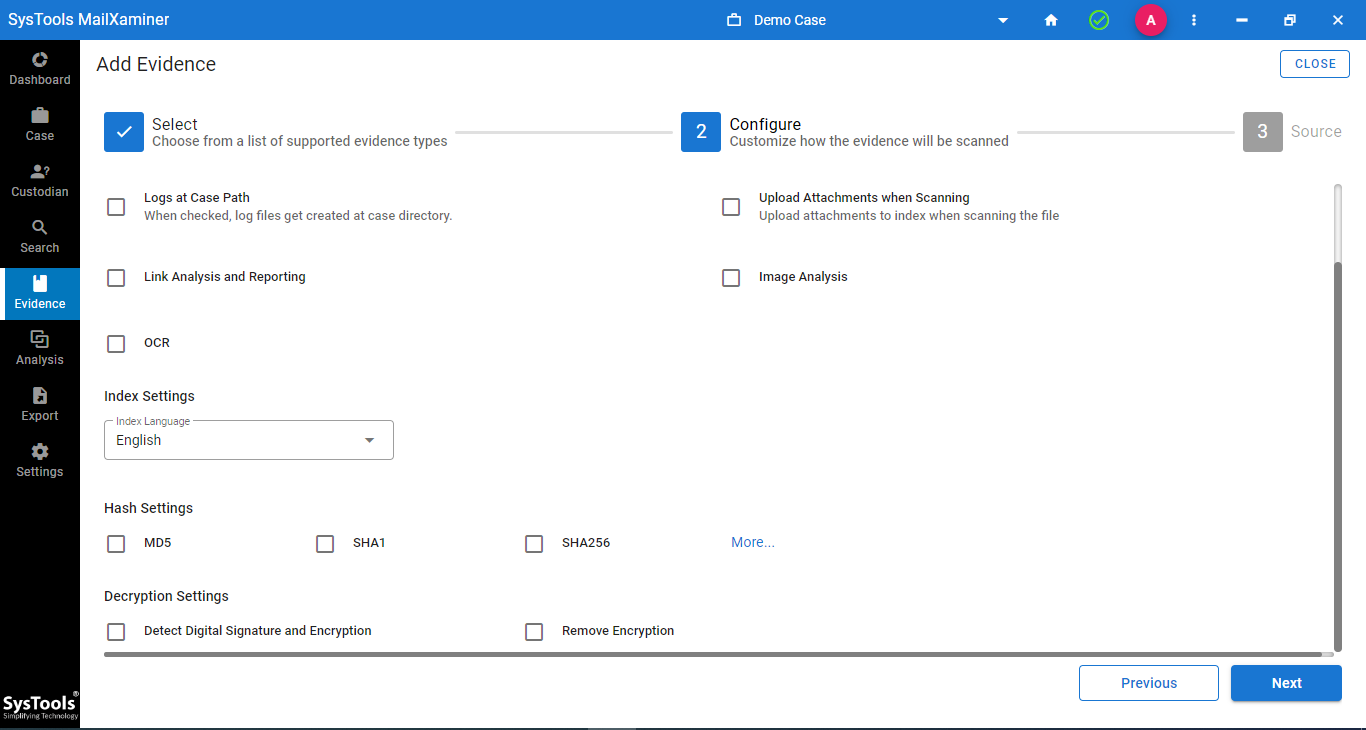
With the help of an OCR scanner, investigators can find text within the file while searching images in Outlook, all within a single dashboard.
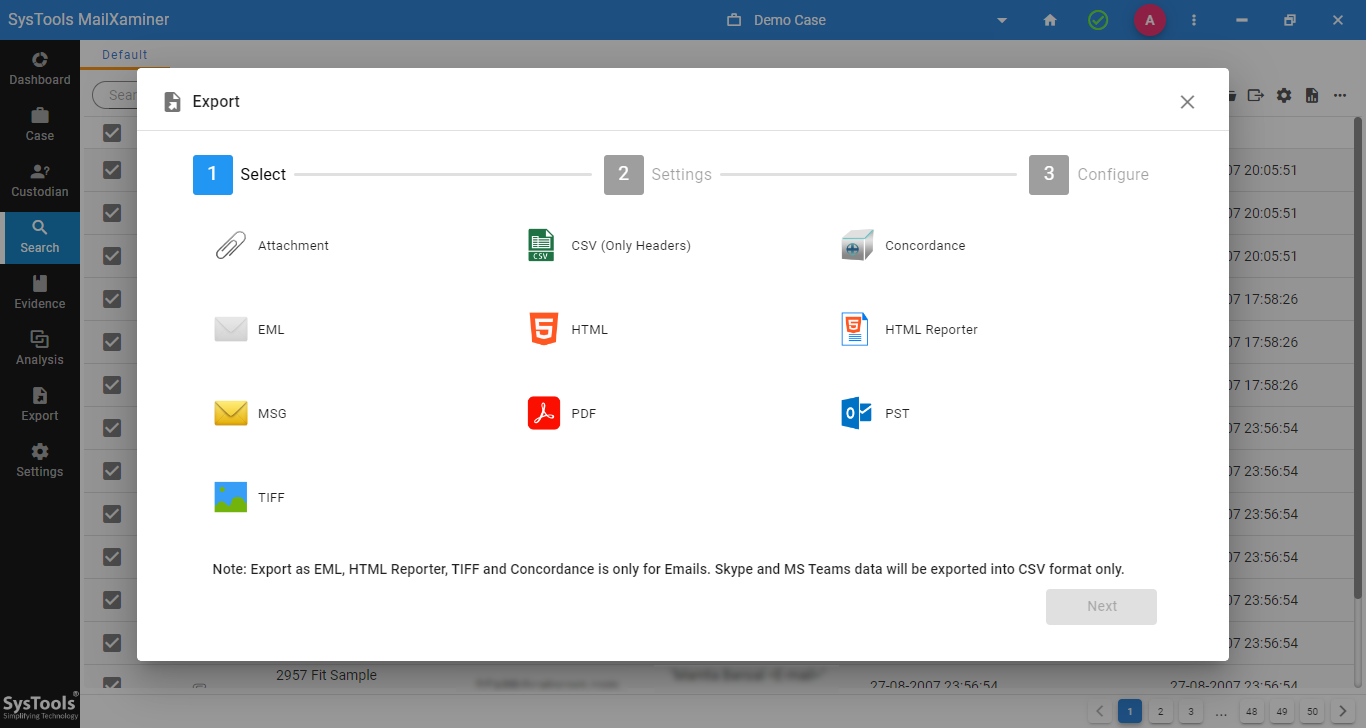
Detectives can export their search results in many different formats right from the tool and generate a complimentary report as well.
Conclusion
Through this write-up, we established how important it is to find attachments in Outlook email chain during email forensics. Here, we found that manual searching and sorting methods often prove impractical. This is due to the inherent limitations in Outlook’s chain management.
Moreover, editing features present in the Outlook email service can be misused by nefarious entities to manipulate the information. Apart from the obvious, investigators may miss out on analyzing the tremendous amount of metadata present in those threads.
That’s why experts across the globe trust the leading tool in the field of email forensics for all digital investigations.
Frequently Asked Questions
Q – What is the difference between a regular email and an email thread inside Outlook?
A – The only noticeable difference is that in email conversations, there is back and forth exchange of messages that reference each other. On the other hand, regular emails have a single intent, i.e., to inform the recipient. Both can contain attachments and involve more than two people.
Q – How are email chains different from email threads?
A – These closely resemble each other, so they may confuse. It is better to understand it via examples. So, an email chain can be a marketing mail that encourages users to forward the mail to get discount coupons, cashback, etc is an email chain.
Whereas, email threads most commonly occur when, for example, a person is communicating with the support staff regarding a product or service.
Q – What kind of attachments are present in an Outlook email thread?
A – The email thread is just a regular email with a specific structure, so all attachment rules/ boundaries apply here as well. The most common email attachments would be images, documents, spreadsheets, audio, video, and other media.